Vehicle List & View Vehicles
Vehicle List
Access the Vehicle List in the Fleet management system by clicking Vehicles > List under the Vehicles menu. In the list, you can view the vehicles you have entered into the Fleet management system and the following:
- Search for a specific vehicle
- Filter the list by Status, Vehicle Collection Name, Hub, Year, Created At or Assigned
- You can Import Vehicles, Export Vehicles or Add New Vehicle
- View, Edit, or Delete vehicles under the action column
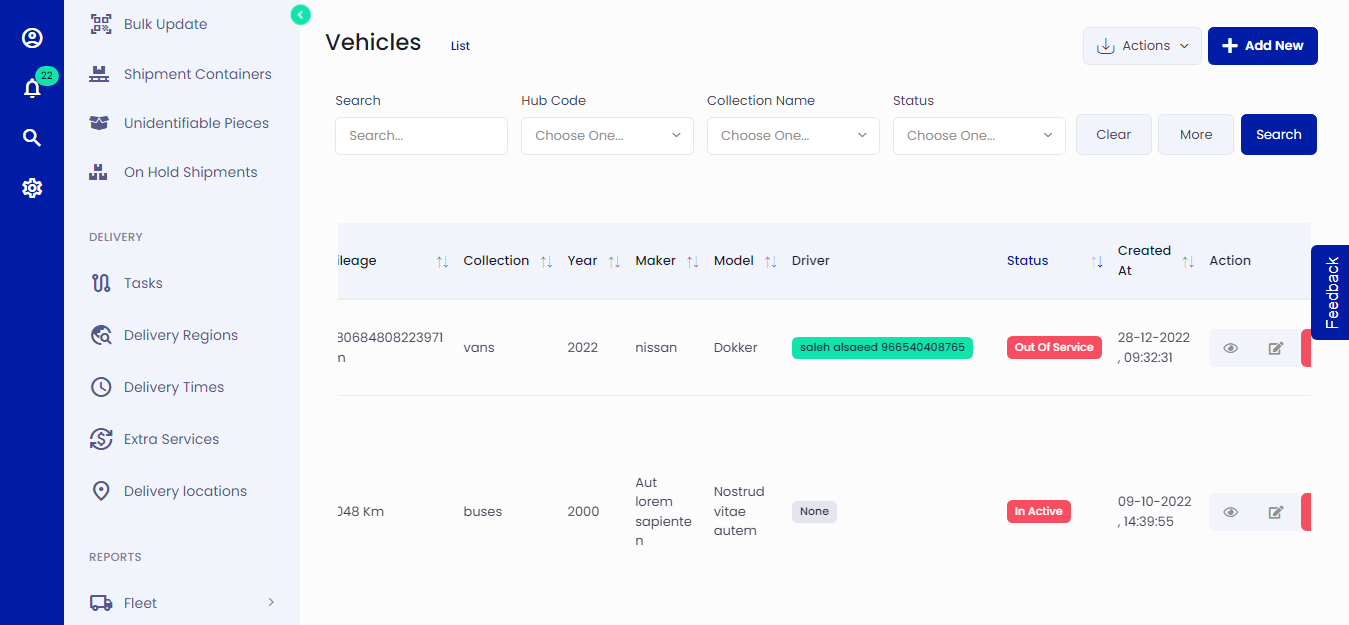 Figure.01 Vehicle List
View Vehicles
By clicking any row in the Vehicle List, you will be taken to the Vehicle Overview for that specific vehicle. In the Vehicle Overview, you can:
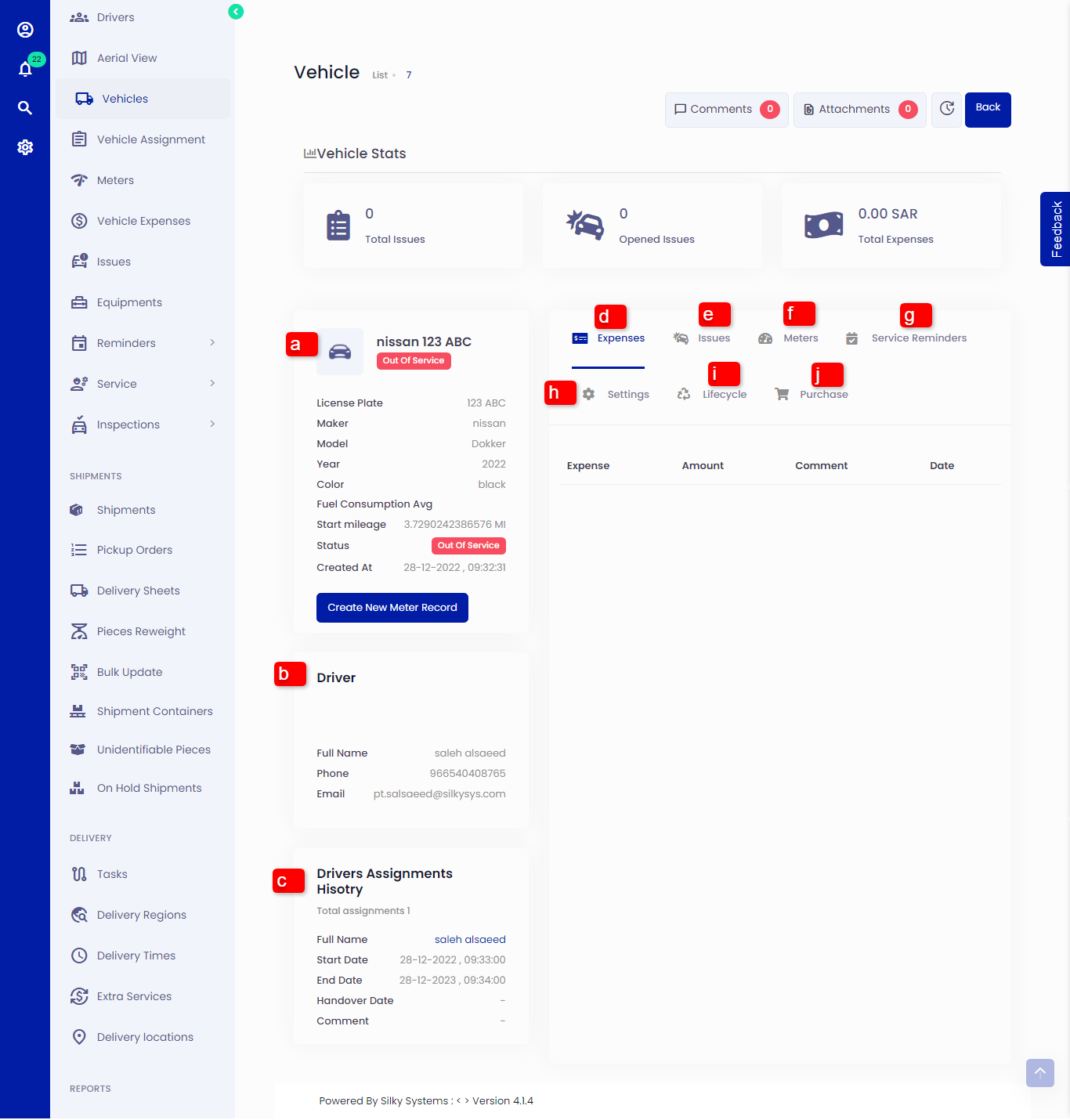 Figure.02 Vehicle Details
(a) Displays all the vehicle details.
(b) Driver: Displays the assigned driver details.
(c) Driver Assignment History: Displays the history of all the assigned drivers.
(d) Expenses: Displays all the vehicle expenses
(e) Issues: Displays all the vehicle issues
(f) Meters: Displays all the vehicle meter history. You can also add a new meter record by clicking the Create New Meter Record button
(g) Service Reminders: Displays all the service reminders of the vehicle
(h) Settings: Displays all the vehicle settings.
(i) Lifecycle: Displays vehicle lifecycle details.
(j) Purchase: Displays vehicle purchase details.