Issues
The Issues Module allows users to log and track unexpected, unplanned, or "one-time" type problems and repairs. Examples of Issues include leaks, breakdowns, and failed Inspection checklist items.
Add Issues
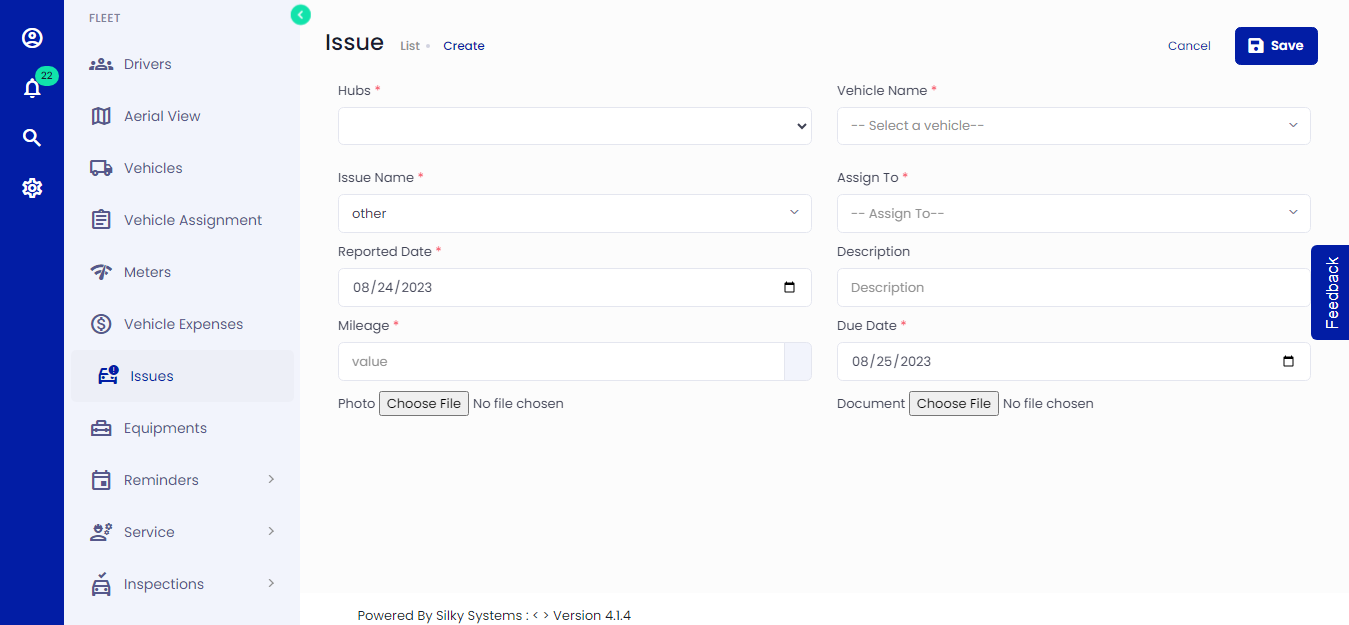 Figure.01 Add Issues
Click on Issues -> Add New
Complete the fields of the entry form, where (*) indicates a required field:
Issue Details
Hub: The hub for which the Issue is reported
Vehicle Name: Vehicle for which the Issue is reported
Reported By: User reporting the Issue (defaults to the User creating the Issue)
Assigned To: Select Contact (Reminder Notifications will be sent via email to these Contacts)
Issue Name: Select the type of issue. You can create issues from Settings -> Report Issue Topics
Description: Detailed explanation of the work to be done
Reported Date: Date the Issue is reported
Due Date: Deadline for when the Issue should be resolved or closed
Primary Meter: Meter reading at the time of the Issue
Labels: Option for tagging/identifying Issues for additional reporting
Photo or Document: Upload any photo or document concerning the issue.
- Click save when you are done.
- You can edit/delete the Issues later.
Once an Issue is Saved, the Issue Status will be set to Open.
Issue Status
Track your vehicle Issues from start to finish using various Statuses to indicate the workflow phase.
- Open
- Default system-assigned status for a new Issue
- Represents an issue that has been initiated but has not been set to the Resolved or Closed status by a User
- Overdue
- Automatic system-assigned status for an Issue past its Due Date
- Resolved
- User indicated status
- Represents an issue that has been Resolved
- Closed
- User indicated status
- Represents an issue that has been acknowledged and marked Closed by a User
- Should be assigned to Issues that will not be Resolved
- _Example: A dent to a door may need to be reported, but no plans are going to be put into place to remove (Resolve) the dent_
View Issues
Issues can be viewed from the following locations:
Issues List
Select Issues from the Issues section of the left sidebar menu. Click on the List tab to view all Issues
Use the Search and Filter options to narrow the results displayed, finding Issues by Hubs.
Sort Issues by clicking the Column headers, by Name, Label, Due Date and more.
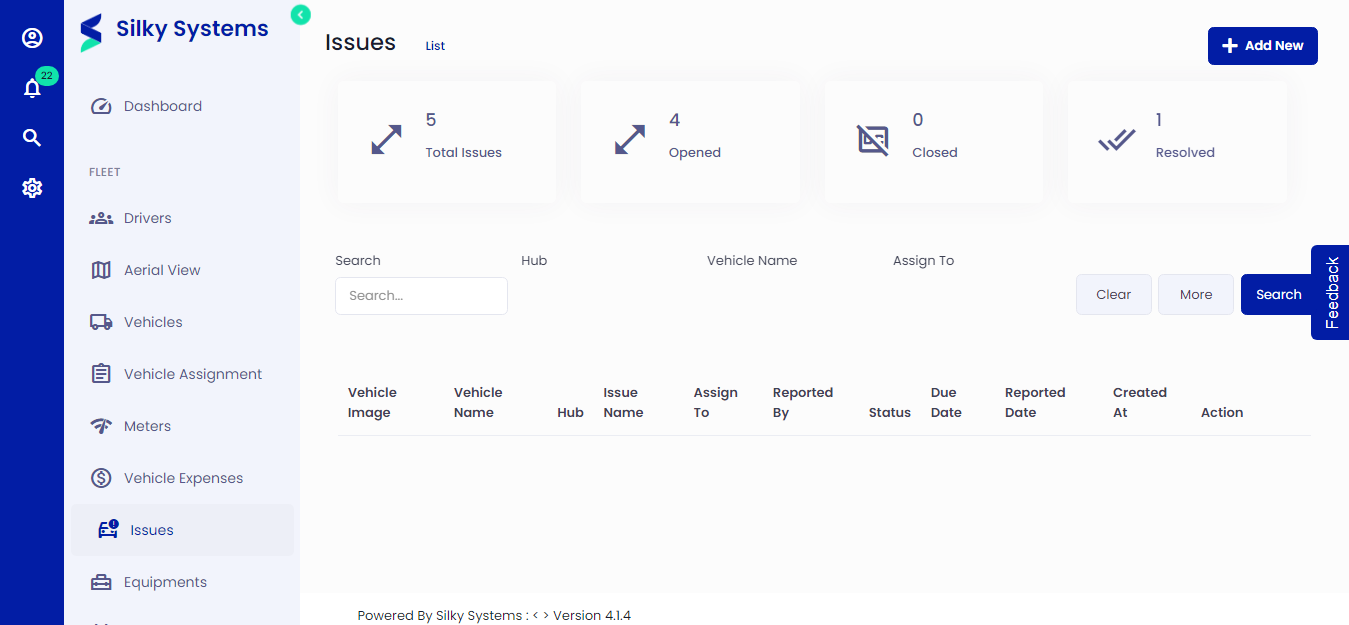 Figure.01 Issues List
Vehicle Overview
When looking at the Vehicle Overview, there's the Issues tab on the top menu where you can view issues by status for the vehicle, issues assigned to an individual, and due date.
Edit or Delete Issues
If you need to make changes or delete an Issue, navigate to the Issues menu, click the List, select any specific issue and click on the edit button to Edit the issue.
Manage Issues - Resolve or Close
Once an Issue has been created, additional actions are required to Resolve or Close the Issue. Resolving an Issue is intended to signify that work was completed to fix the issue. Closing an Issue indicates that no work was done to complete the Issue, but the issue is no longer considered "Open". Examples of this may include an Issue that was reported but can't be recreated (e.g. an odd noise) or a low priority Issue that you want out of the Open inbox (e.g. a small dent).
You can edit an issue from the Issue List page to change its status.