Vehicle Assignments
Vehicle Assignments List Page
In the Vehicle Assignment module, all vehicle assignments are displayed in a tabular format. This page provides an overview of key information related to each assignment.
Vehicle Assignment Table Details
The table includes the following details:
- Assigned Driver: The driver assigned to the vehicle.
- Vehicle: The specific vehicle assigned for the task.
- Start Date: The date when the assignment begins.
- End Date: The date when the assignment concludes.
- Status: Indicates whether the assignment is in "Handover," "Assigned," or "Unassigned" status.
- Active Status: Indicates whether the assignment is currently active.
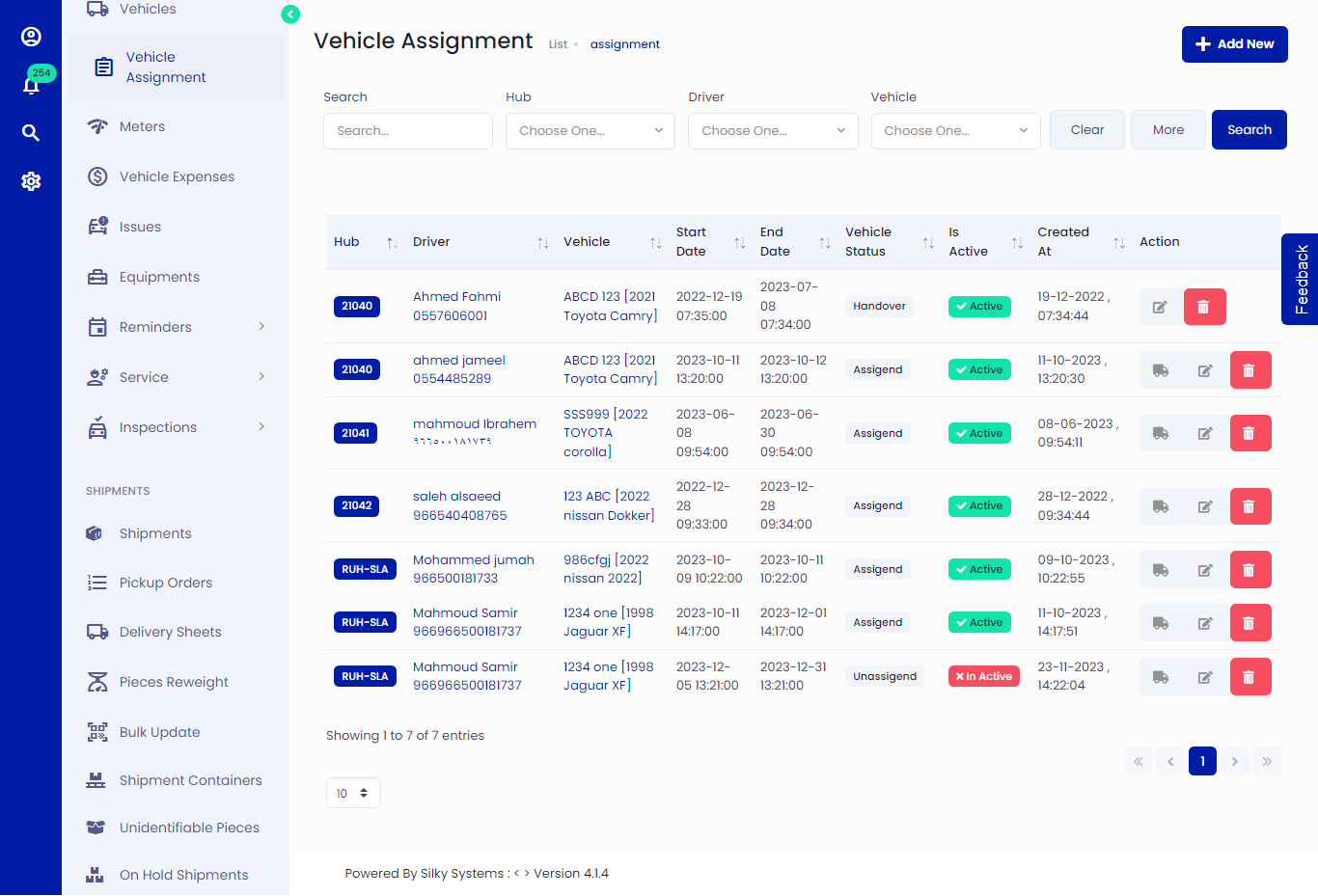 Figure.01 Vehicle Assignment
Creating a Vehicle Assignment
To create a new vehicle assignment, perform the following steps:
- In the Vehicle Assignment module, click on the "Add New" button.
- Fill in the required details, including the vehicle, driver, hub, start date, and end date.
- Click "Save" to confirm the assignment.
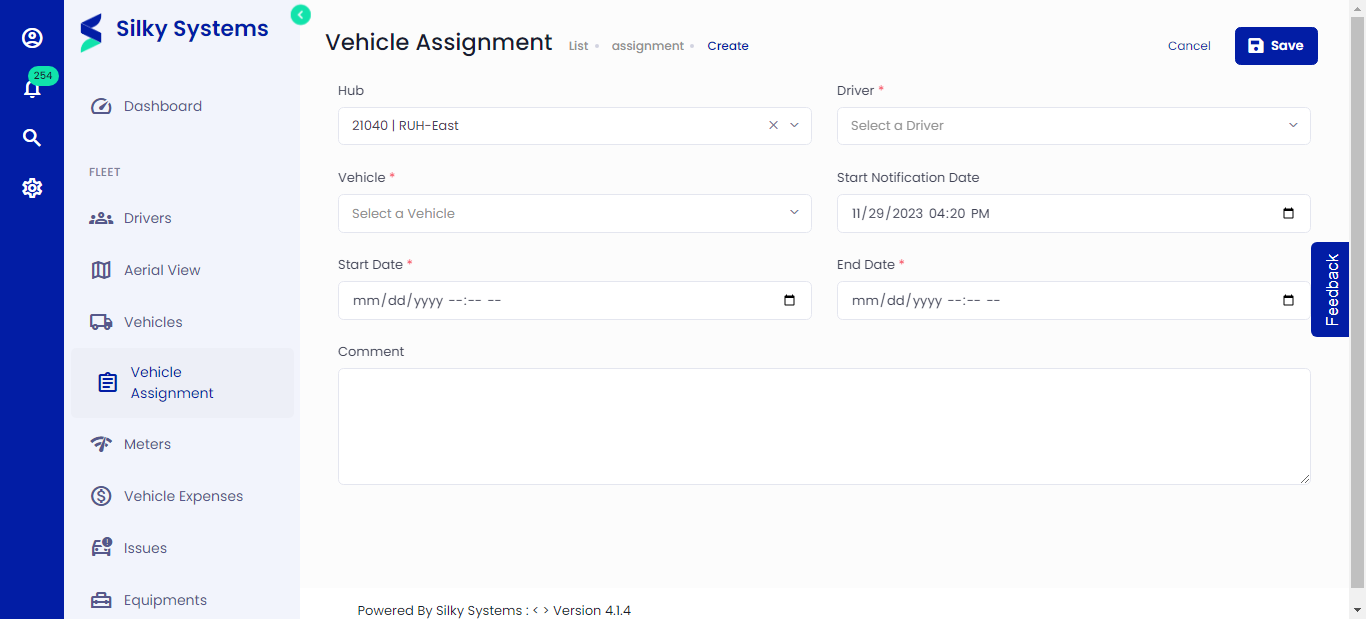 Figure.02 Vehicle Assignment
Editing Vehicle Assignment
To edit existing vehicle assignments:
- In the Vehicle Assignment module, you'll find a list of existing assignments on the "Assignments List" page.
- Click on the assignment you want to edit.
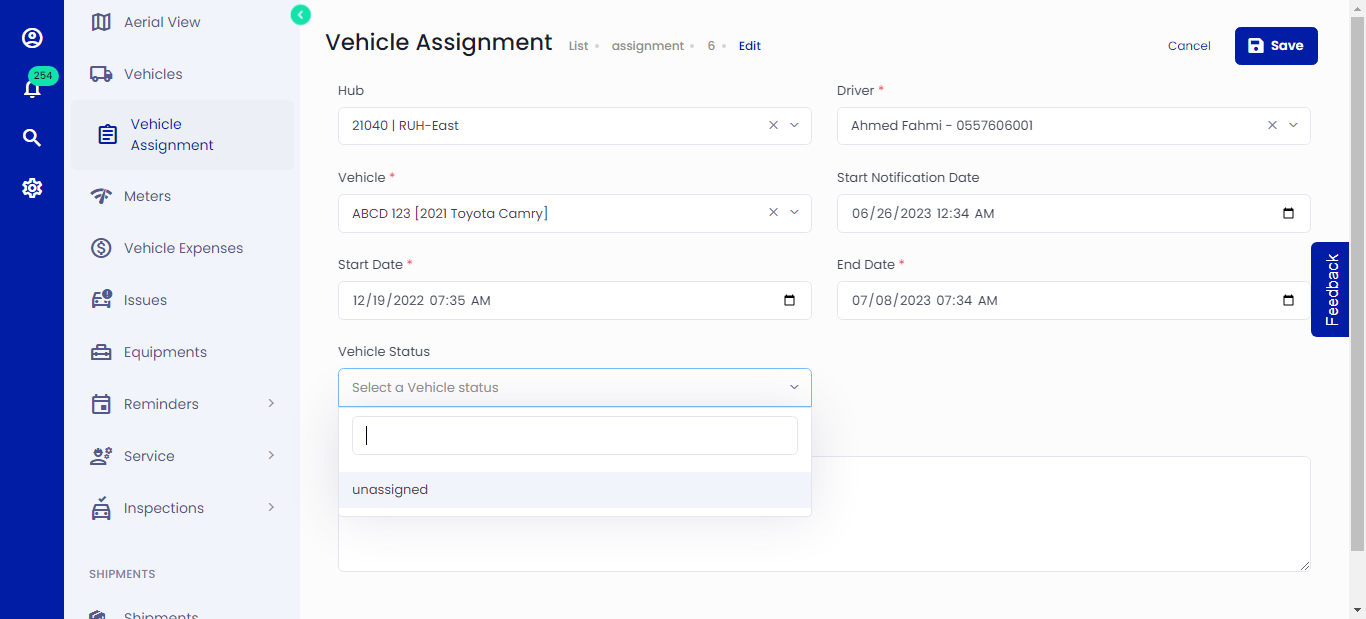 Figure.03 Vehicle Assignment
Changing Status to Handover
- Click on the truck icon to change the status to "Handover."
Changing Status to Assigned or Unassigned
- Click on "Edit" icon on the vehicle assignment page.
- In the edit page, change the status to either "Assigned" or "Unassigned."
- Click "Save" to confirm edits.
Conclusion
Efficiently manage and monitor all your vehicle assignments through the comprehensive "Assignments List" page. This feature ensures seamless coordination of vehicles, drivers, and hubs, optimizing your logistics operations. Thank you for choosing our logistics system!