Import Vehicles
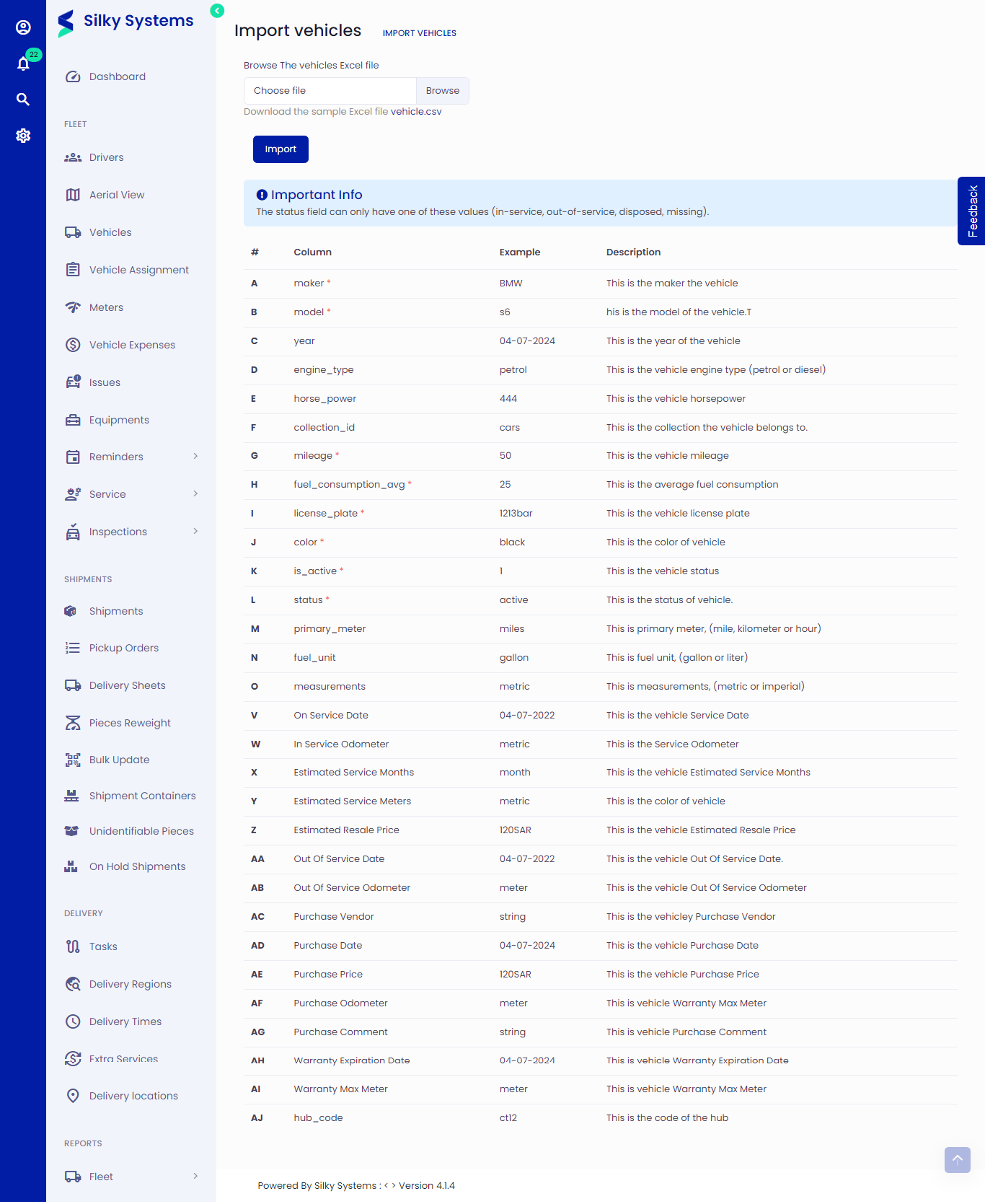 Figure.01 Import Vehicles
To import Vehicles, follow the below instructions.
Importing Vehicles
Click on Vehicles -> Import
You can follow the example of the data shown below or download the sample excel file to get the vehicle template.
Make sure that the status field only has one of these values (in-service, out-of-service, disposed, missing).
Set the is_active field 0 for In Active and 1 for Active
The columns marked with '*' are required to fill up; others can be skipped.
Upload your file and click Import.