Vehicle Renewals
When managing fleets, a lot is happening on any given day. Instead of remembering when a vehicle's License or Registration needs to be renewed or writing it down and hoping you remember to glance at it in time, Vehicle Renewals do the work for you once they're set up in the Fleet management system. These reminders use a schedule based on an interval you set and pop up when it is close to being due (referred to as "Due Soon" in the Fleet management system).
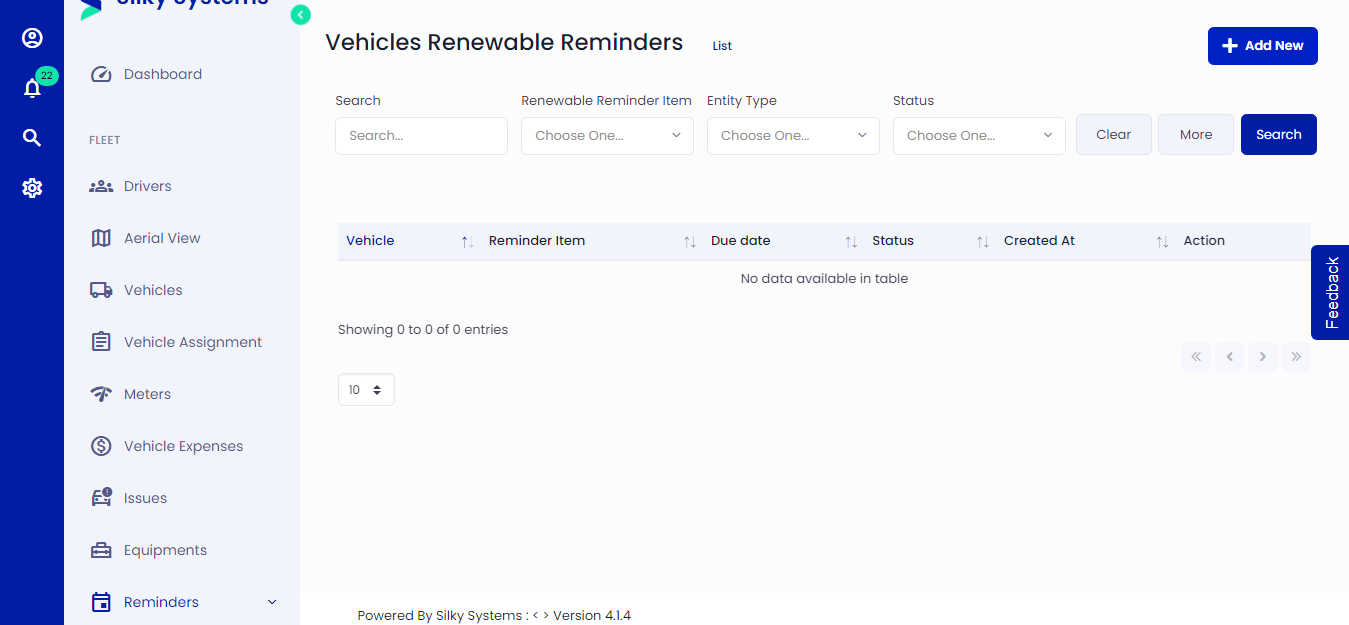 Figure.01 Vehicle Renewals
Add a Vehicle Renewals
Go to the Reminders and select the Vehicle Renewals tab. Then, click the + Add New button.
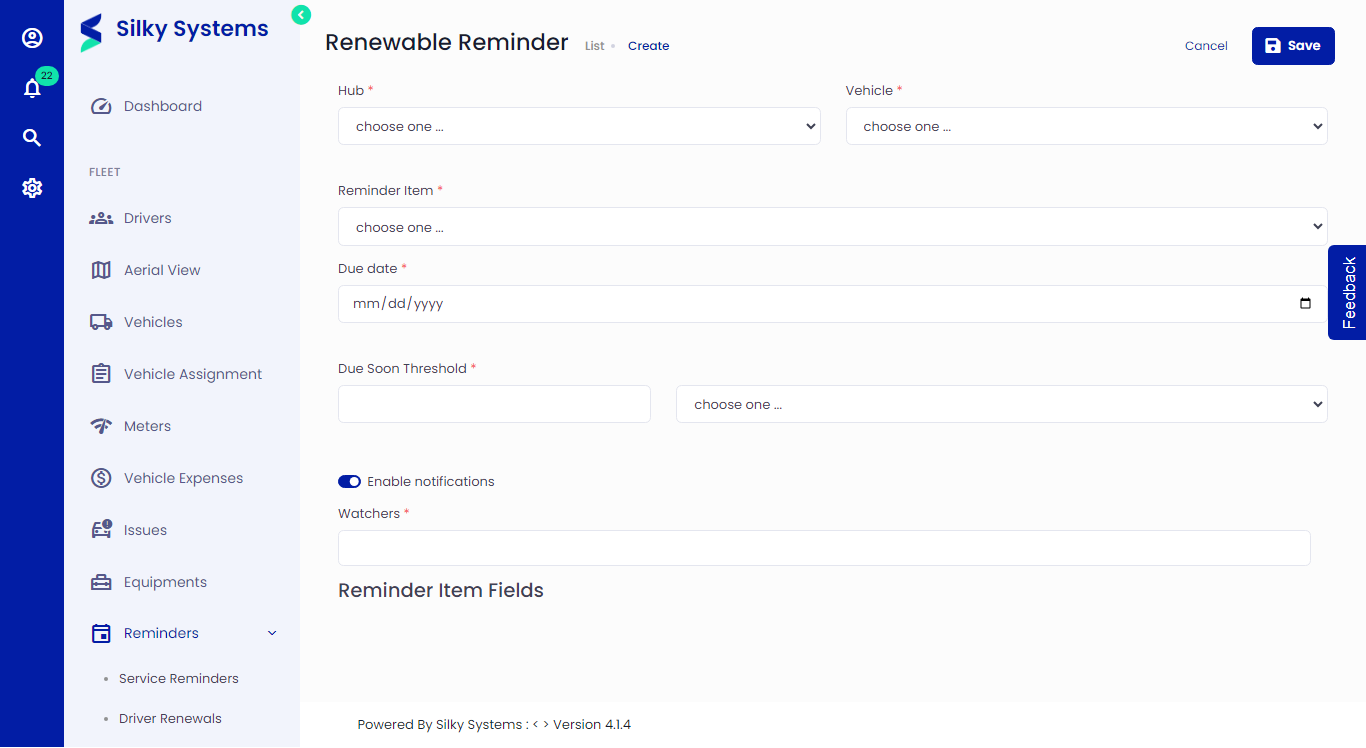 Figure.02 Add a Vehicle Renewals
Select Reminder Item
Select Reminder Item using the drop-down menu. This can be an existing Reminder Item, or if there isn't a match in the Fleet management system, you have the option to create a reminder item.
Set up a Reminder Schedule
This section creates the reminder schedule.
The Due Date specifies the date the reminder item must be renewed. The Reminder Start Date is when you wish the reminder to begin. The system calculates the reminder start duration automatically. When the reminder isn't started, its status is Upcoming; when it is, its status is Due Soon.
Set Notifications
The fleet management system will send Notifications to Watchers when a Vehicle Renewals is "Due Soon" and/or "Overdue." Select the checkbox to send notifications, or de-select it to disable them.
 Figure.04 Add a Vehicle Renewals
Better control how these notifications are delivered in your Settings -> Notifications You can receive a single email and/or push notification per Vehicle Renewals you are watching.
Edit or Delete Individual Vehicle Renewals
You can edit or delete Vehicle Renewals from Reminders -> Vehicle Renewals under the Action column.