Pickup Orders
Overview
The Pickup Orders feature facilitates the creation and management of pickup orders. Users can input customer details, address, and shipment information to generate pickup requests. Delivery personnel can then access these orders, confirm pickups, and subsequently deliver the shipments to the designated customers.
Pickup Orders List
The Pickup Orders dashboard provides a summary of all pickup orders, including the following information:
- Total Allocated: The number of pickup orders that have been allocated to a warehouse.
- Total Successful: The number of pickup orders that have been successfully picked up by customers.
- Total Pickup: The total number of pickup orders.
- Total Pickup Exceptions: The number of pickup orders that have had exceptions, such as cancelled orders or orders that are not ready for pickup.
The dashboard also includes a table that lists all pickup orders. The table includes the following information for each order:
- ID: The unique identifier for the pickup order.
- Client: The name of the customer who placed the order.
- Code: The pickup code that the customer will need to present when picking up their order.
- Date: The date on which the order was placed.
- Time: The time slot during which the customer can pick up their order.
- Pieces: The number of items in the order.
- Status: The status of the order, such as Pending, Approved, or Rejected.
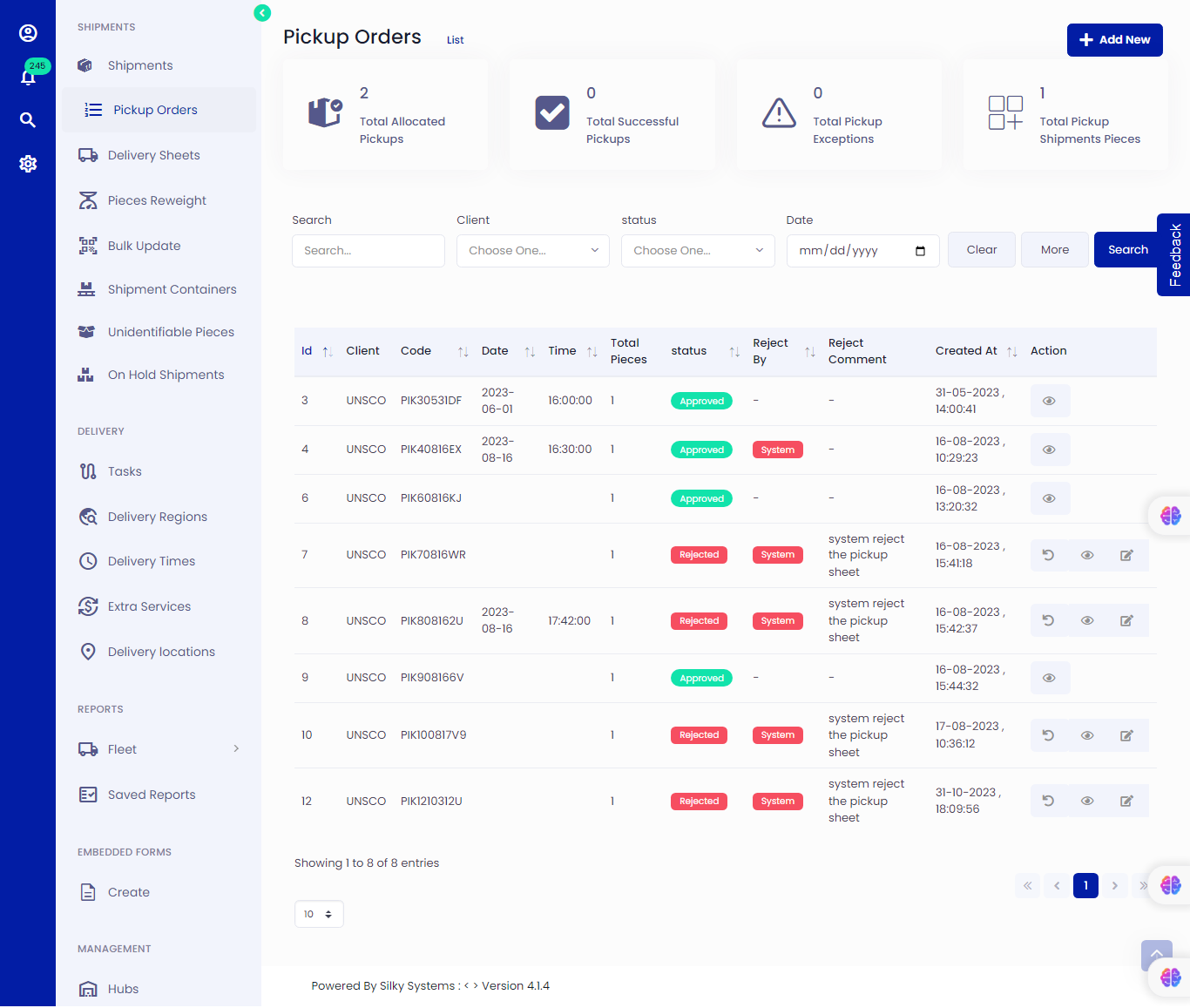 Figure.01 Pickup Orders
Managing Pickup Orders
To manage pickup orders, you can use the following features:
- Update: You can use the Update icon to update the status of pickup orders.
- Search: You can use the Search feature to search for pickup orders by customer name, pickup code, status, or date.
Approving and Rejecting Pickup Orders
To approve or reject a pickup order, you can click on the edit icon. Select the status Pending, Approved or Rejected and provide a reason for the rejection if selected.
- Approving a pickup order: When you approve a pickup order, the order will be allocated to a warehouse and the customer will receive a notification with the pickup location and time.
- Rejecting a pickup order: When you reject a pickup order, the customer will receive a notification that their order cannot be picked up.
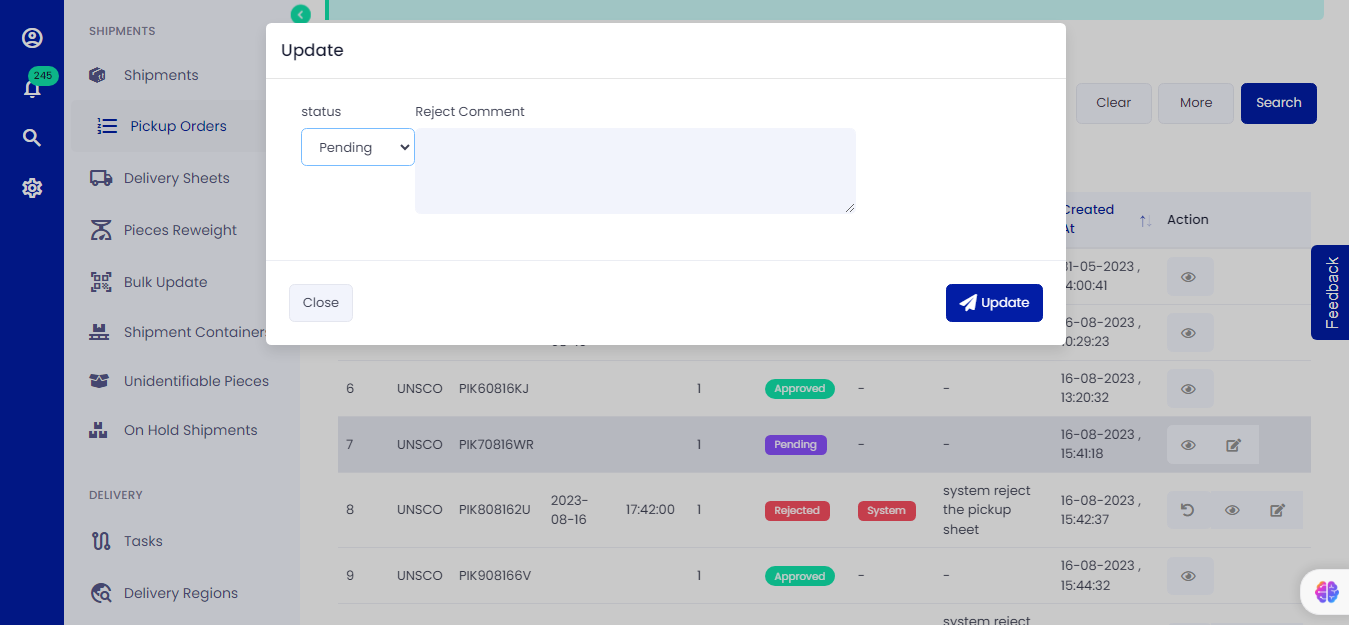 Figure.02 Pickup Orders
Creating a Pickup Order
To create a pickup order, a delivery person must first log in to the logistics system. Once logged in, the delivery person must navigate to the Pickup Orders page.
On the Pickup Orders page, the delivery person must click on the + Add New button. This will open a new window where the delivery person can enter the following information:
- Customer name
- Customer address
- Shipment pieces
- Dispatch Type
Once the delivery person has entered all of the required information, they must click on the Create button. This will create a new pickup order and assign it to the delivery person.
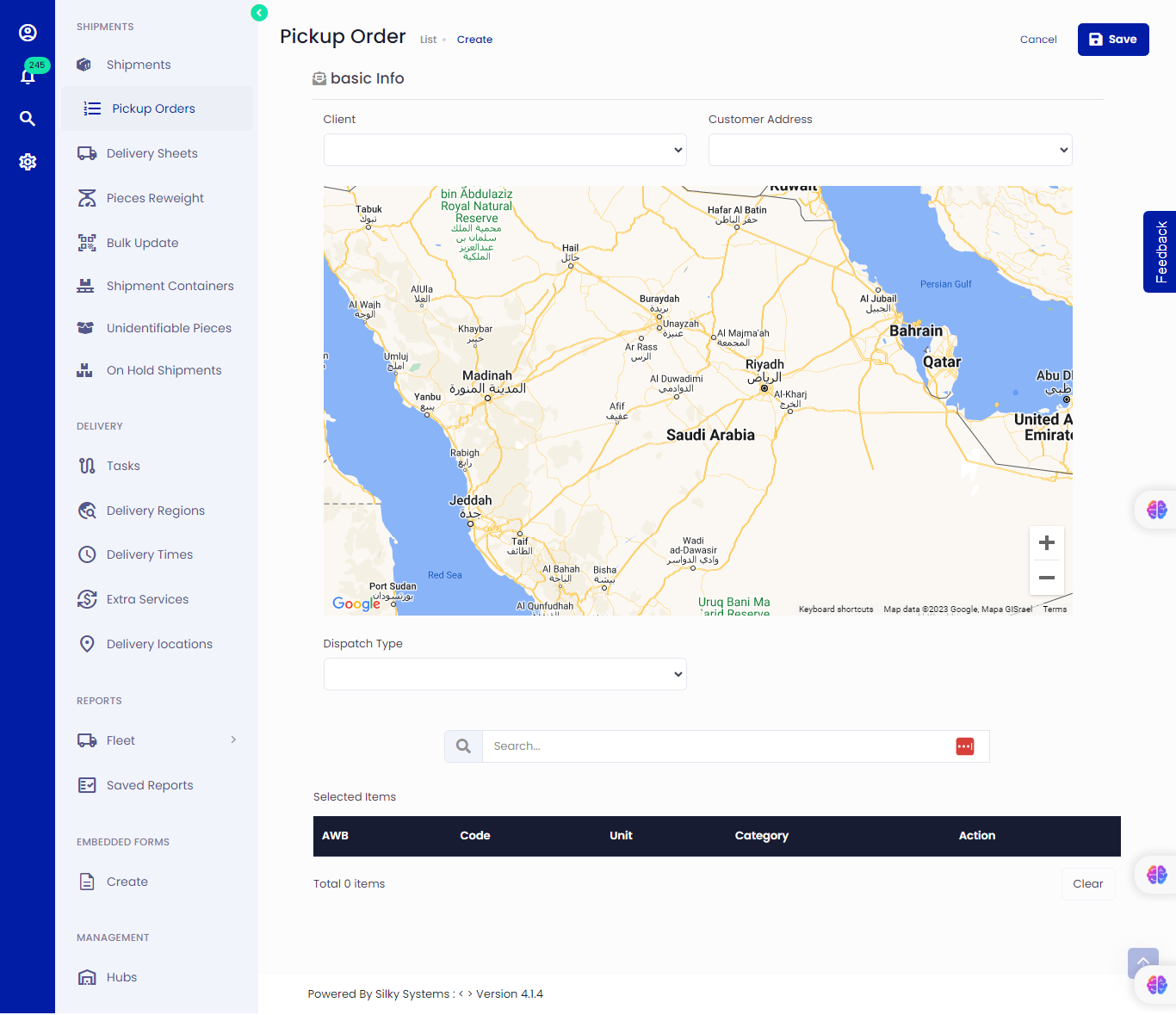 Figure.03 Pickup Orders
Viewing Pickup Order Details
To view the details of a pickup order, a delivery person must navigate to the Pickup Orders page and click on the view icon of the pickup order. This will open a new window where the delivery person can view the following information:
- Customer information
- Order information
- Pickup information
- Shipment Pieces information
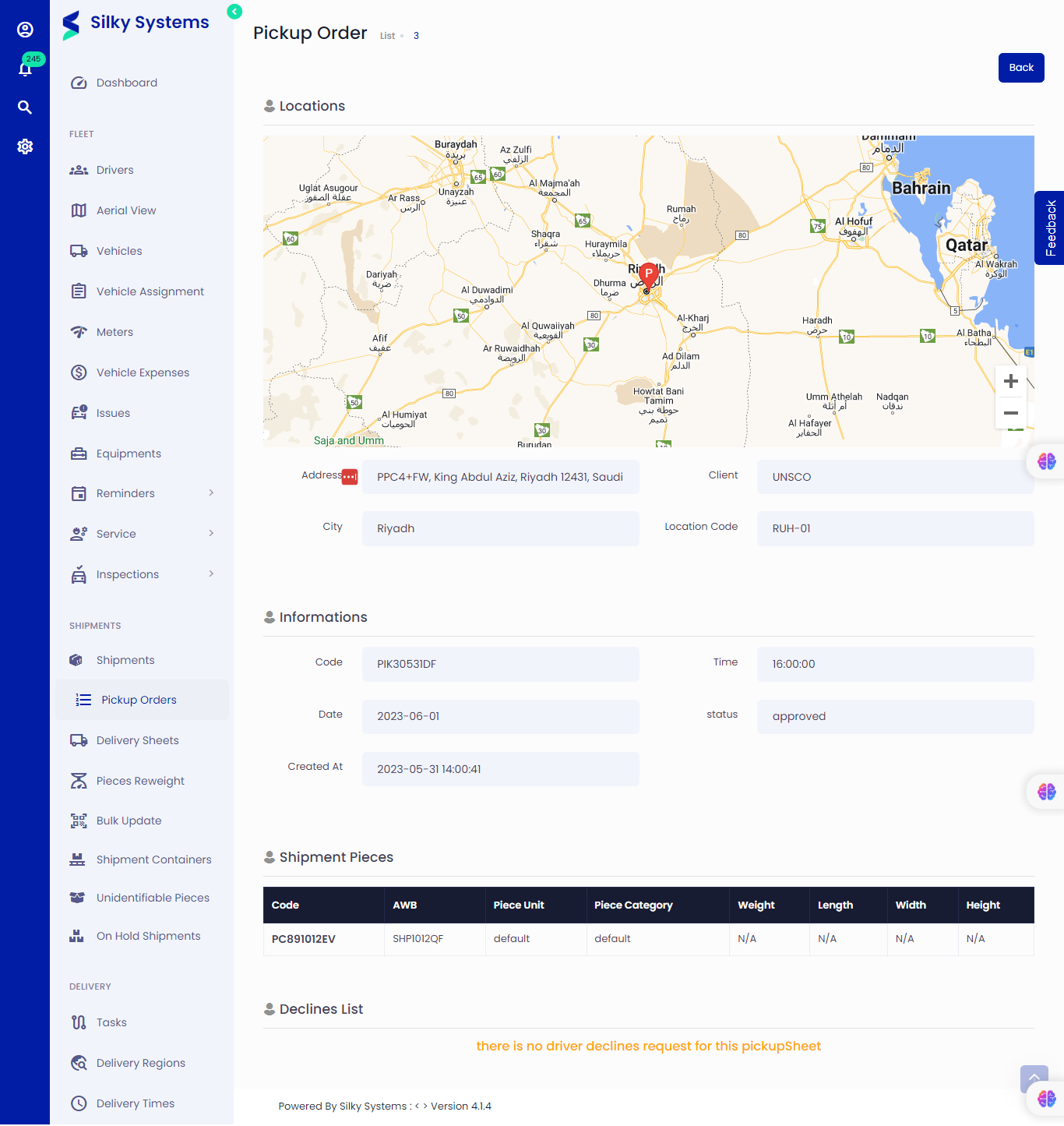 Figure.04 Pickup Orders