Delivery Sheets
Overview
The Delivery Sheets feature in the logistics system is a powerful tool designed to streamline the process of managing and executing shipment deliveries. This feature enables users to create, view, edit, and print delivery sheets, providing delivery personnel with essential information about each order, including the hub location, driver name, delivery date, and details about the shipment pieces. This documentation will guide you through the various functionalities and steps involved in using the Delivery Sheets feature.
1. Creating a Delivery Sheet
1.1 Start a New Delivery Sheet
Click on the "Create New" or "New Delivery Sheet" button to initiate the process of creating a new delivery sheet.
1.2 Adding Shipment Details
Enter the relevant information about the shipment, including the destination hub, number of pieces, and any specific handling instructions.
1.3 Assigning a Driver
Select the delivery person or driver responsible for the shipment. This ensures clear accountability for each delivery.
1.4 Setting Delivery Date
Specify the date on which the delivery is scheduled to take place. This helps in planning and organizing the delivery route effectively.
1.5 Saving the Delivery Sheet
Once all necessary details are entered, save the delivery sheet to confirm the creation of the delivery order.
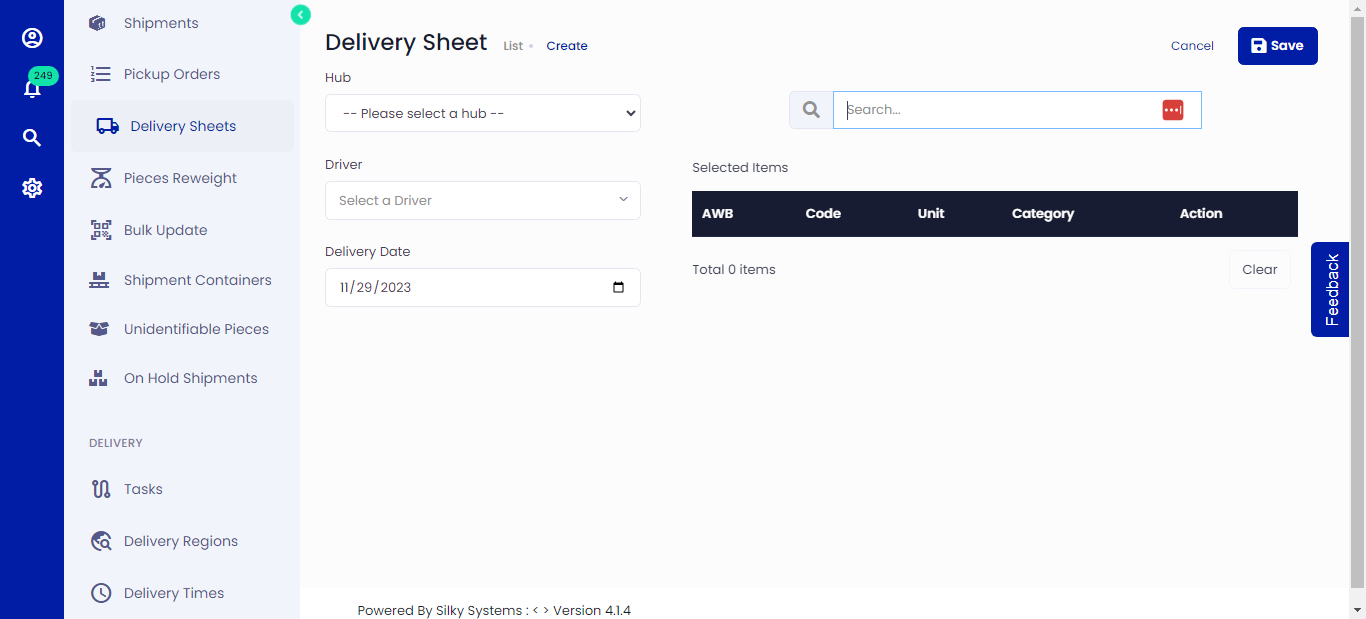 Figure.01 Delivery Sheet
2. Viewing and Editing Delivery Sheets
2.1 Viewing Delivery Sheet Details
Click on a specific delivery sheet to view its details, including hub information, driver name, delivery date, number of pieces, and status.
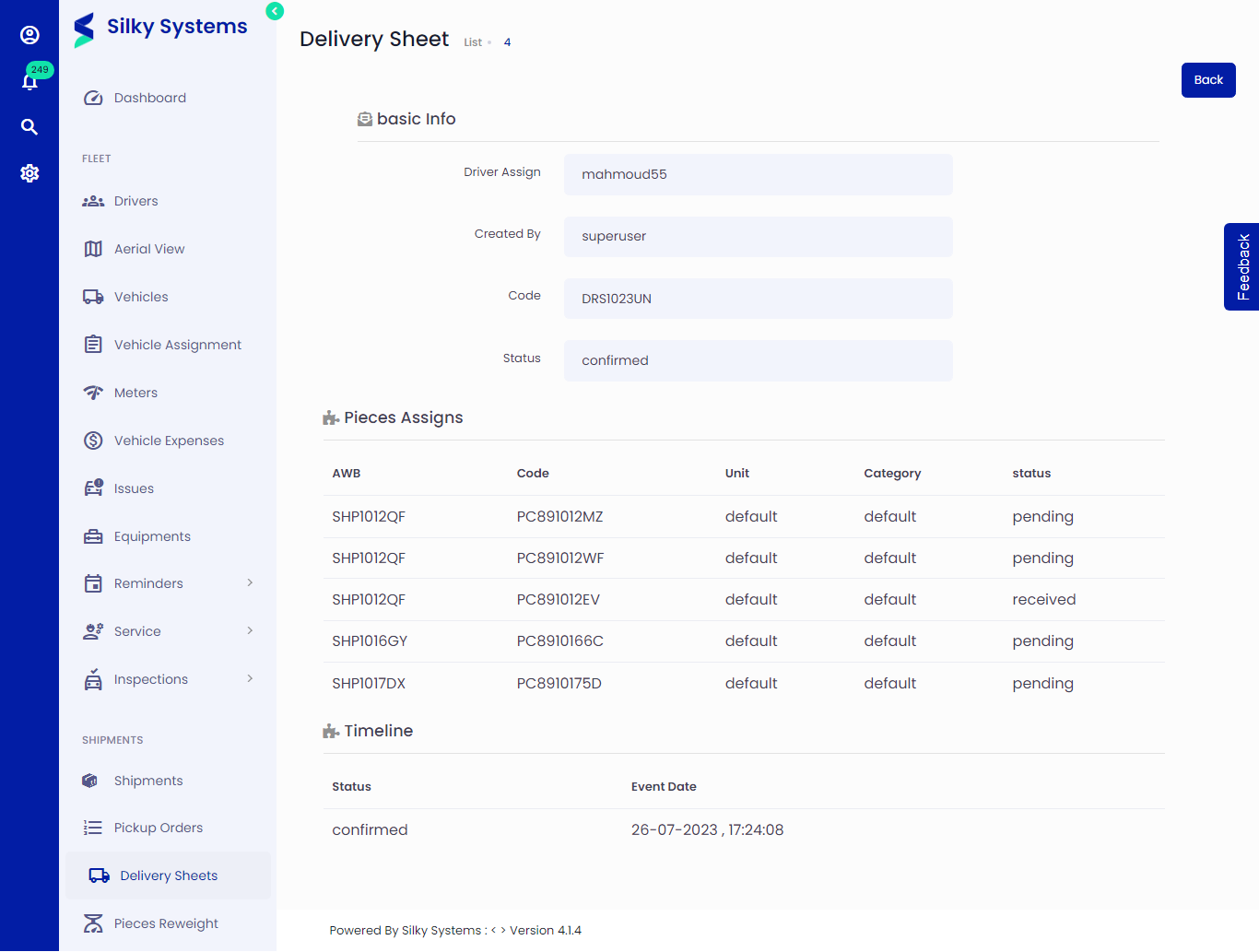 Figure.02 Delivery Sheet
2.2 Editing Delivery Sheet Information
If any changes are required, use the "Edit" icon to update the delivery sheet information.
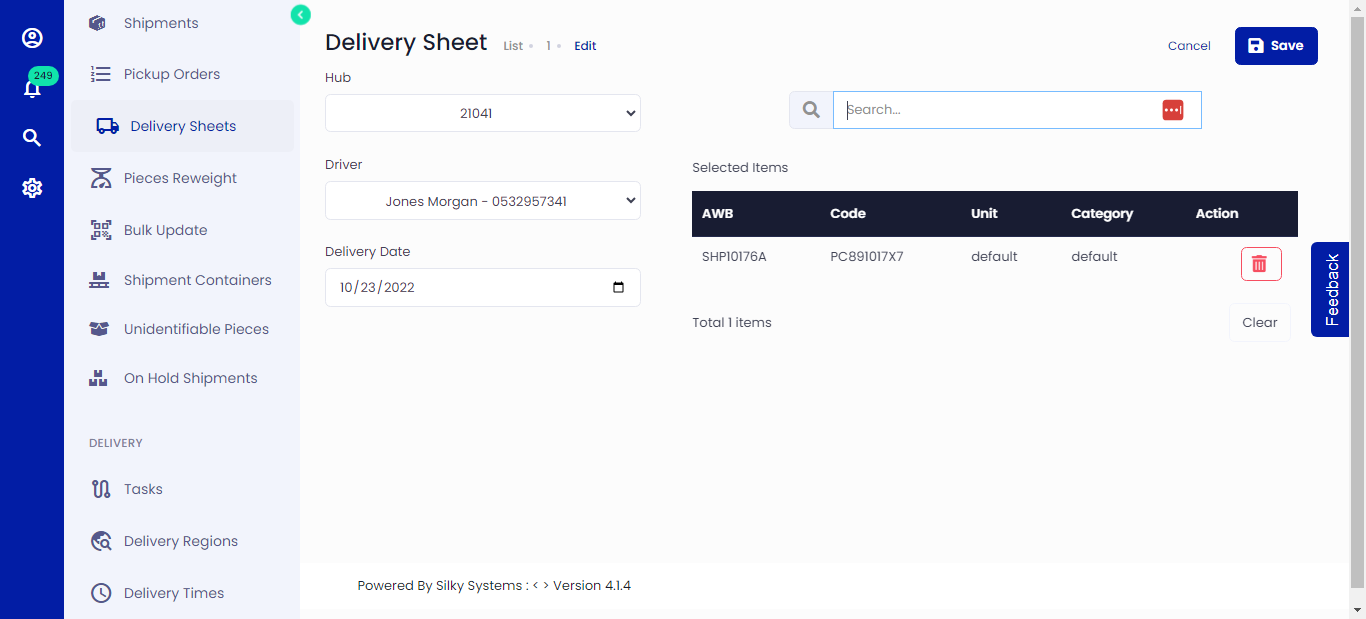 Figure.03 Delivery Sheet
2.3 Saving Changes
Always save changes after editing to ensure that the updated information is reflected in the system.
3. Printing Delivery Sheet Details
Choose the desired delivery sheet from the list of existing sheets that you want to print.
4. Delivery Sheet List Page
The Delivery Sheet List page provides a comprehensive view of all delivery sheets in a tabular format. The table includes the following details:
- Assigned Driver: Displays the name of the driver assigned to each delivery sheet.
- Delivery Date: Shows the scheduled delivery date for each shipment.
- No. of Pieces: Indicates the number of pieces included in each shipment.
- Status: Reflects the current status of the delivery, such as "Pending," "In Progress," or "Completed."
Use the Delivery Sheet List page to quickly assess the status and details of all deliveries, facilitating efficient monitoring and management of the logistics process.
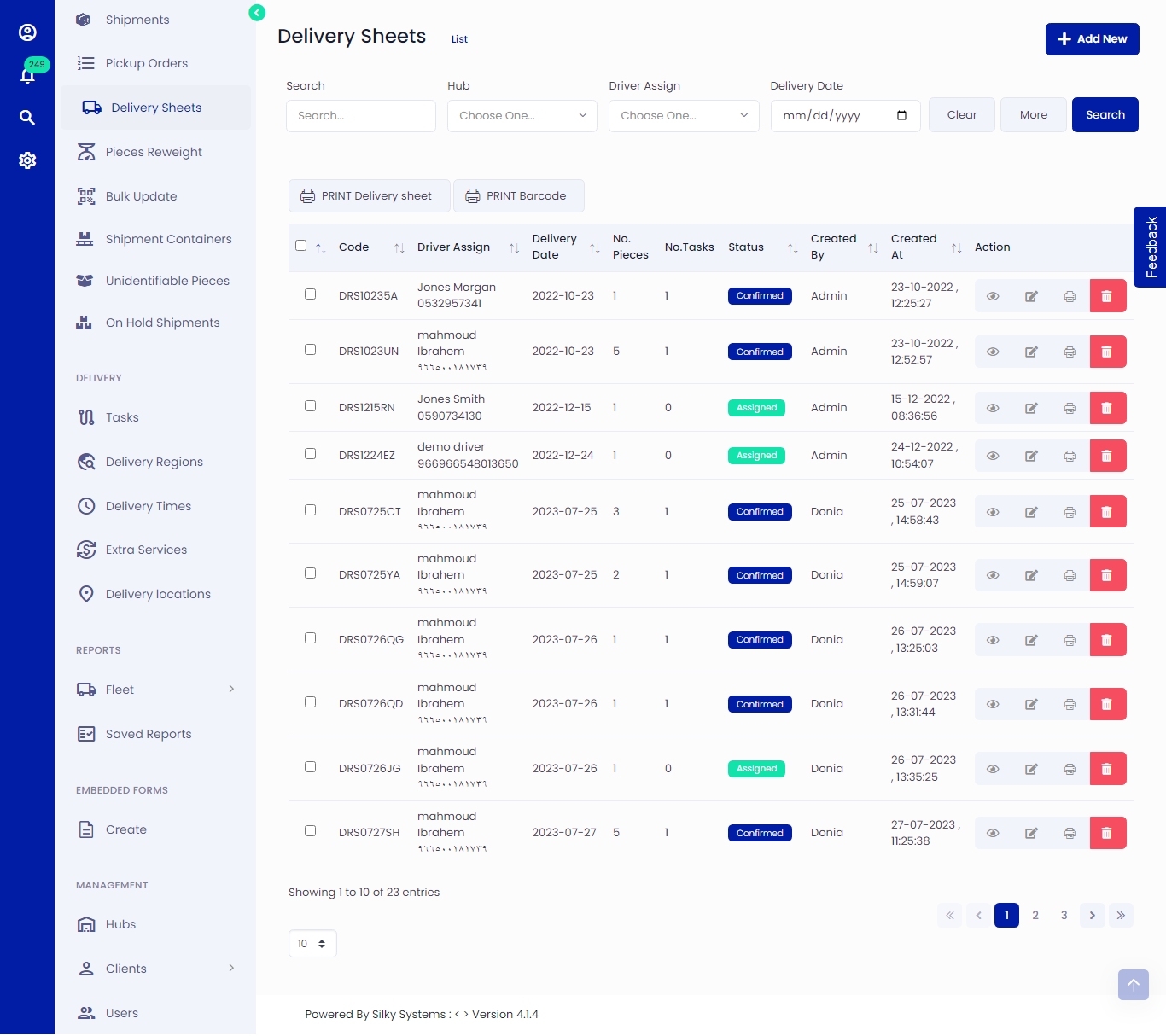 Figure.04 Delivery Sheet