Shipment Container
Shipment Container Overview
A Shipment Container (SC) can be a Bag (for documents and flyers) or a Pallet/Container for boxes. SC helps to update the status or checkpoint of a lot of pieces at the same time. A closed Shipment Container (child SC) can be assigned to another Shipment Container (mother SC). Pieces are assigned to a Shipment Container by scanning the Piece code first, then scanning all the pieces that belong to the Shipment Container. Once the Shipment Container is complete, the SC will be closed.
Create Shipment Container
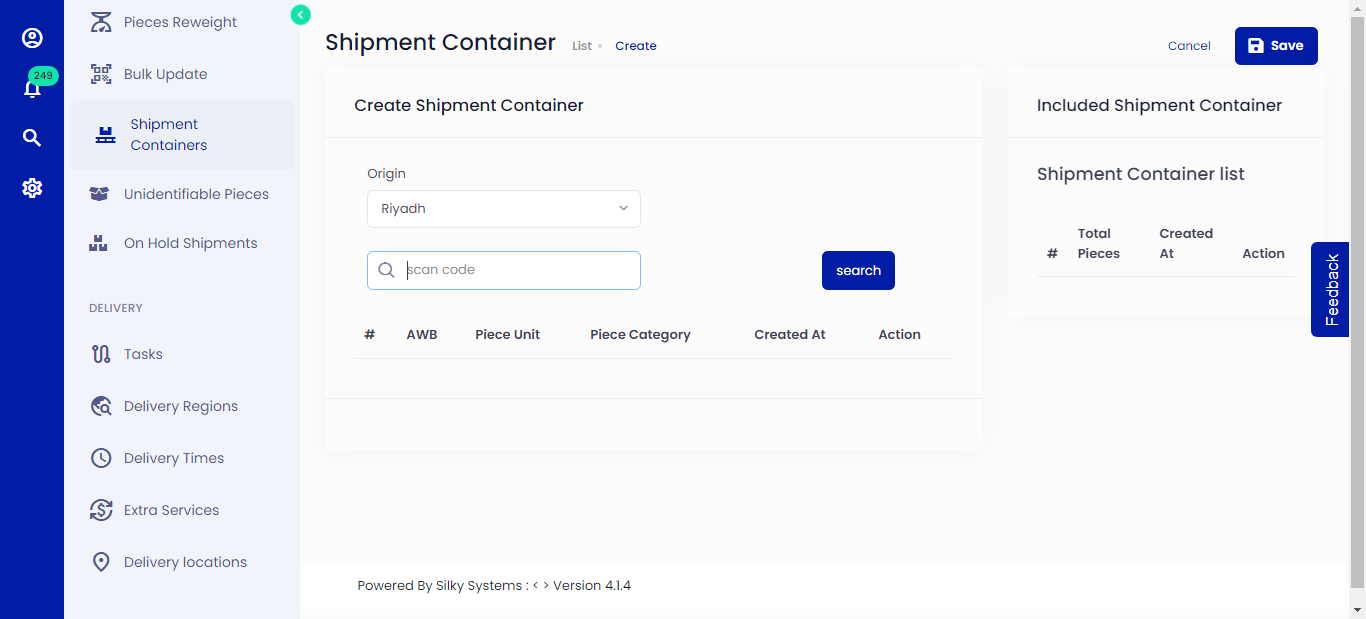 Figure.01 Create Shipment Container
To create a Shipment Container, follow the steps below.
Click on Shipment Container -> Add New
Scan the Piece code you can find by viewing a Shipment. You can add pieces from different shipments as well. Click on Search.
If a piece already exists in a SC, it will give an error indicating that it already exists in an SC.
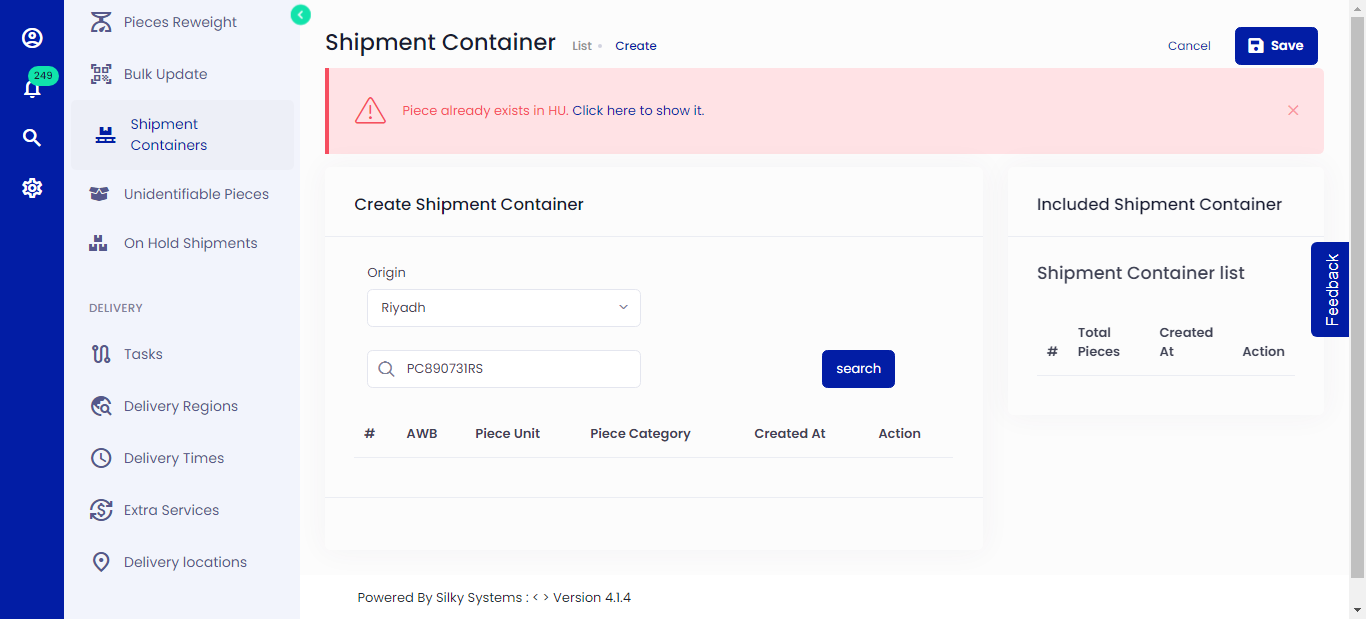 Figure.02 Create Shipment Container
If the piece's destination is different from the destination of the SC, it will give a warning. You can change the SC's destination or leave it as is.
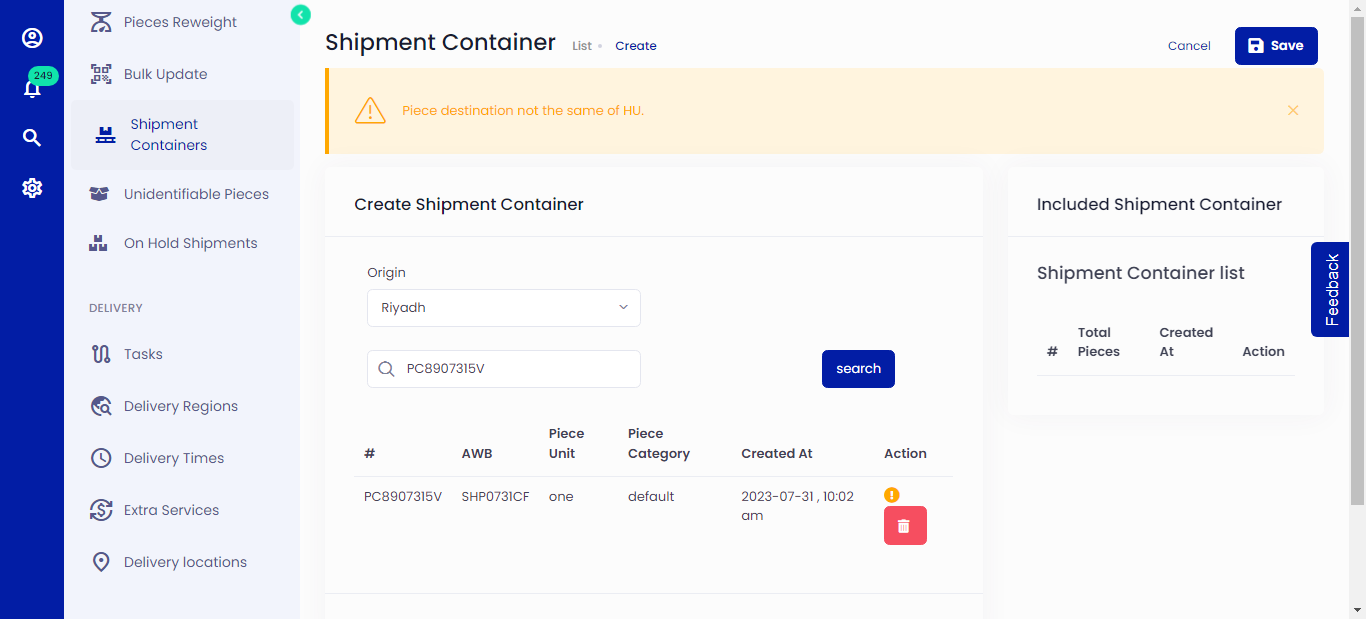 Figure.03 Create Shipment Container
Once you've finished adding the pieces, click submit.
You will be redirected to the Shipment Container List page, where you can see all of the SCs.
View Shipment Container
You can view all the SC information by clicking on the eye icon from Shipment Container List.
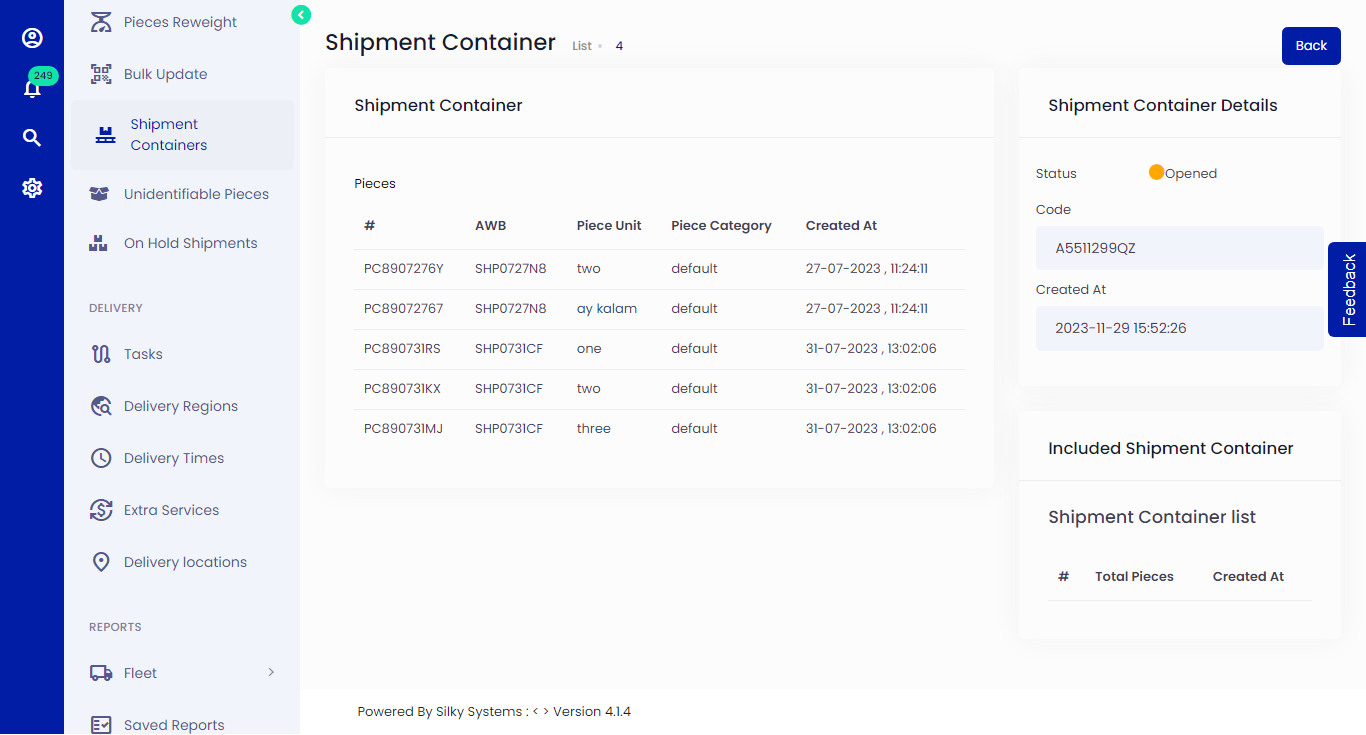 Figure.04 Shipment Container Details
Edit Shipment Container
You can edit the SC information by clicking on the edit icon from Shipment Container List. You can add pieces, remove pieces, change the origin or change the Shipment Container Status.
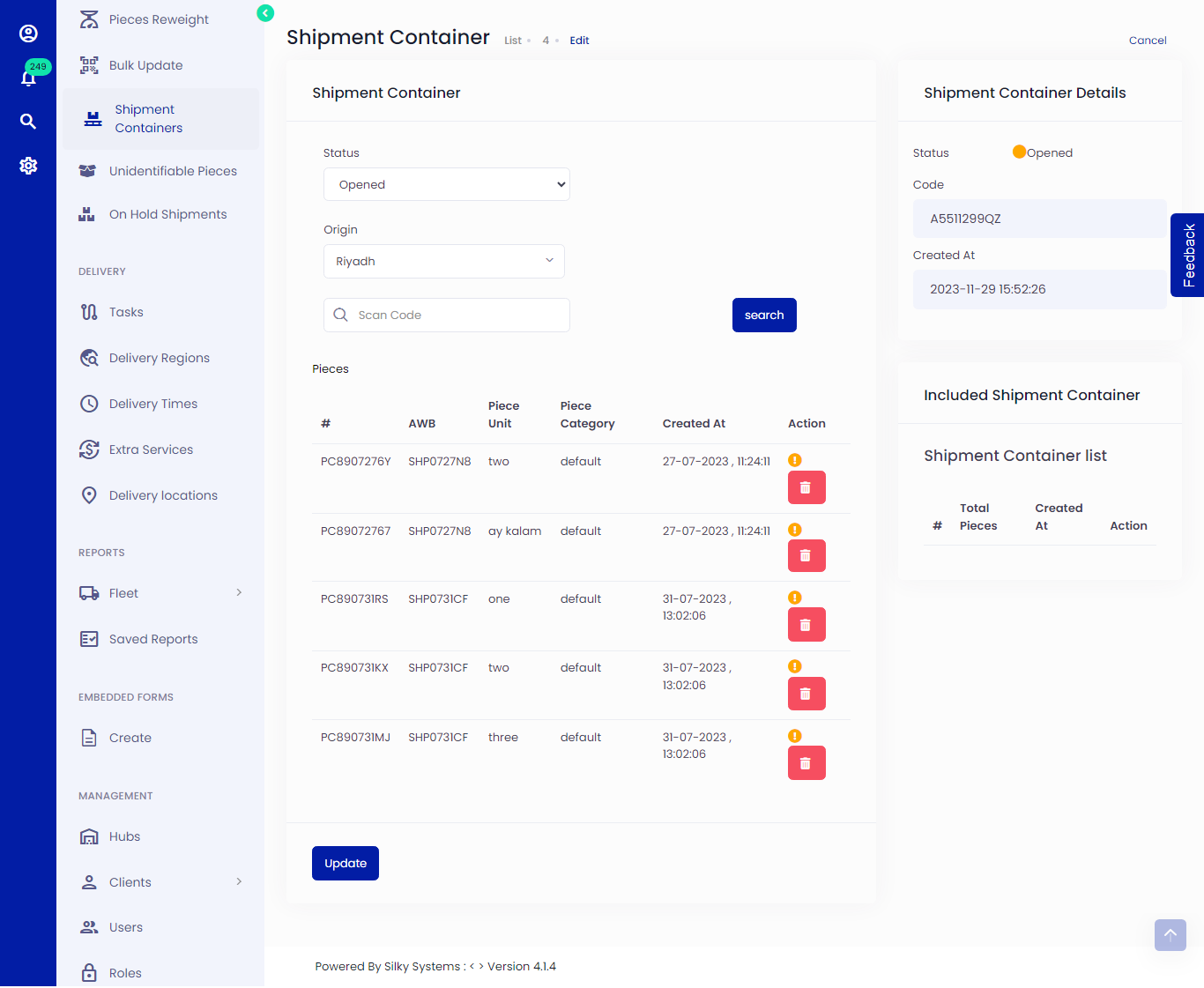 Figure.05 Edit Shipment Container
Shipment Container Status
The Shipment Container has three statuses: Opened, Closed, and Invoked.
Opened: This is the initial status of the SC when it is created. More pieces can be added or removed at this stage.
Closed: You can change the SC status to closed. At this stage, you can not add or remove pieces but can change the origin of the SC. After its status is closed, you can add a SC in another SC.
Invoked: The invoked status takes a right to edit anything in SC.
Shipment Container inside Another Shipment Container
By scanning the SC code, you can add a closed SC inside another SC. Click search to add the SC, as shown in the figure below. Click update to save.
Shipment Container Label
You can print the SC Label by clicking on the print icon in the Shipment Container List.
Shipment Container List
You can view and filter all the Shipment Containers by clicking on the Shipment Container.
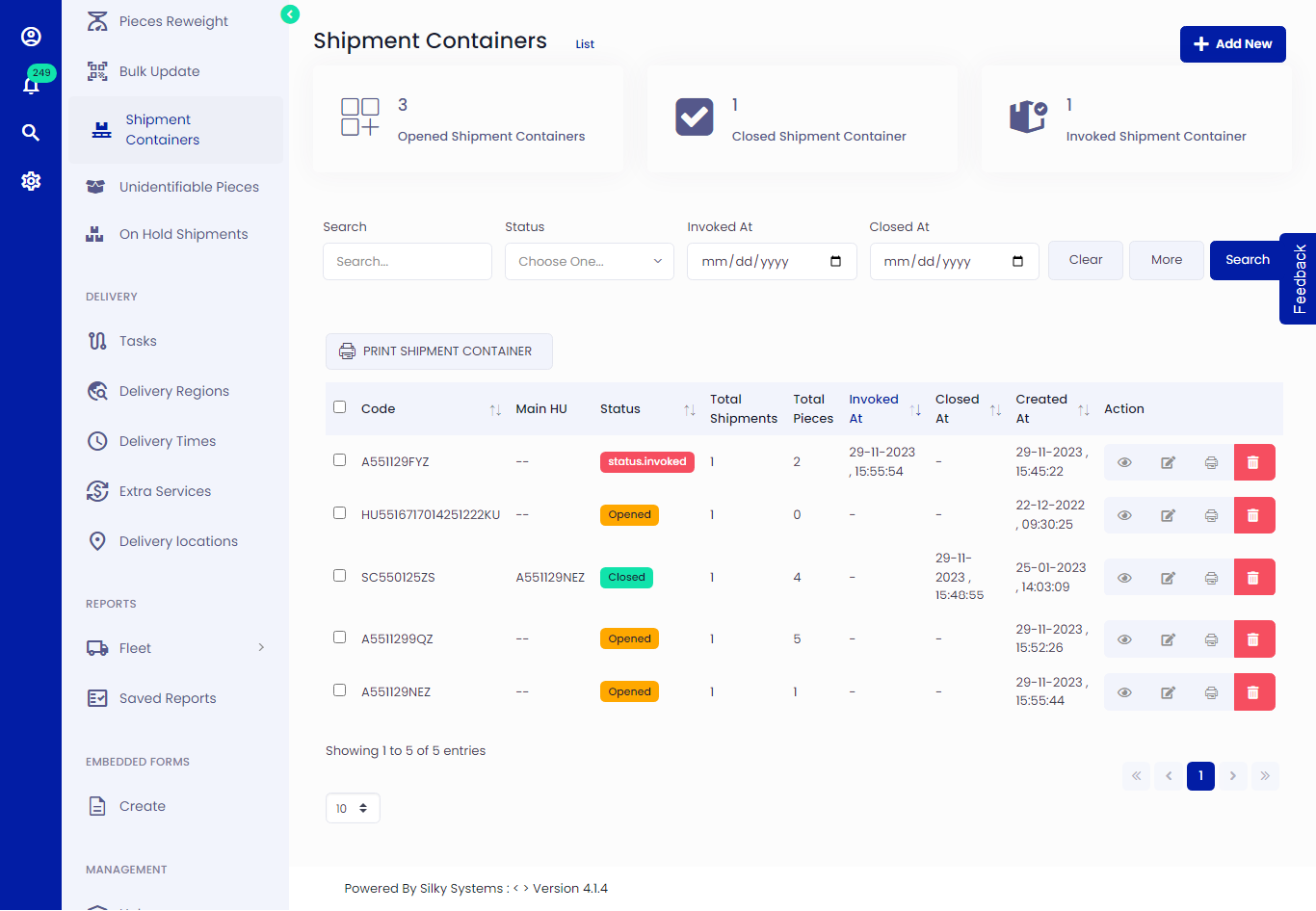 Figure.07 Shipment Container List