Submit Inspections
Once an Inspection Form has been created using the Fleet management web application, most users will complete and submit inspections from their mobile device using the Logistics Mobile App.
The user can also submit inspections through the web browser for those working from a desktop or laptop computer.
Start a New Inspection
Here is how to start an inspection:
- Select Inspections > List from the left sidebar menu. Then click the + Add New button in the upper right corner. Forms will be listed in order of most frequent use.
Select a Vehicle (a) and Inspection Form (b) from the drop-down menu then complete each inspection item.
Depending on which fields you have included for your forms, it may look different than the sample checklist below.
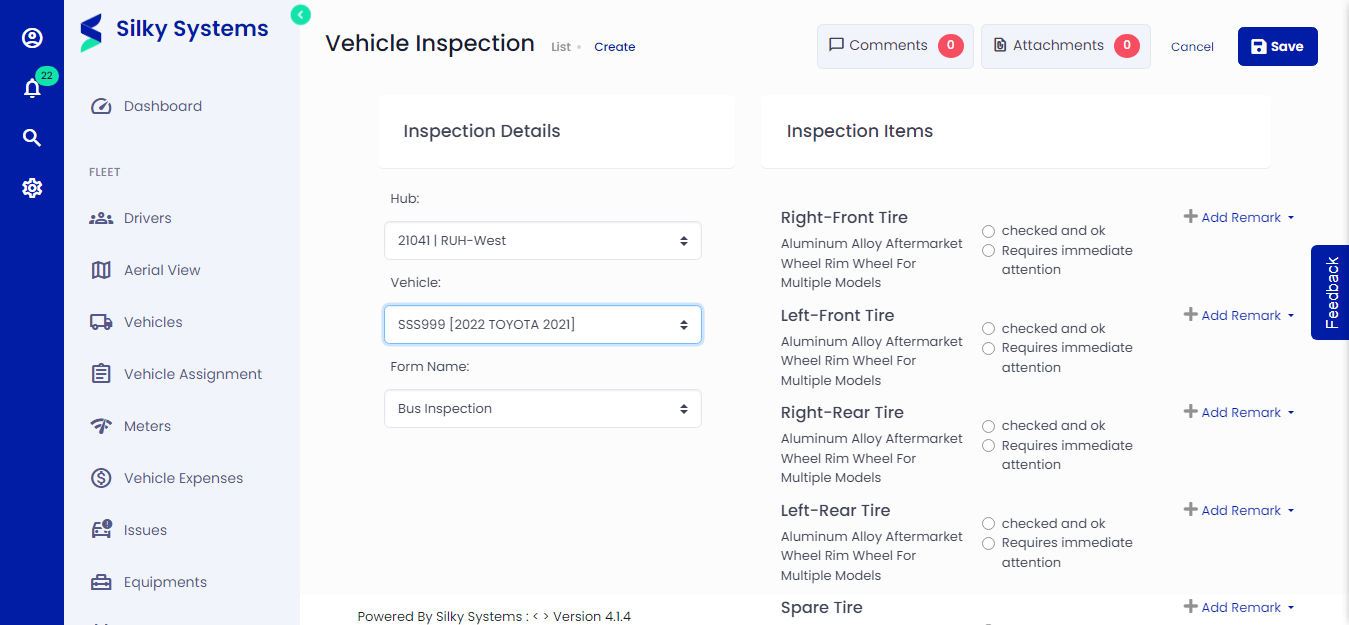 Figure.01 Submit Inspection
Select Save (c) when complete. If there are any errors, such as a required field that needs to be filled out, you will not be able to submit the form until the errors are resolved.
As soon as you save the inspection, you'll be taken to the Inspections List, which will list all the submitted inspections.