Inspection Form
Add Inspection Forms
To add an inspection form:
- Select Inspections > Inspection Forms from the left sidebar menu.
- Select + Add New.
- Enter a Name (required) and a Description (required).
- (Optional) Select a template to customize. Templates are pre-populated with everyday inspection checklist items. If you want to create a new form, leave this field blank.
- Select Save. You'll then be able to modify and add inspection items.
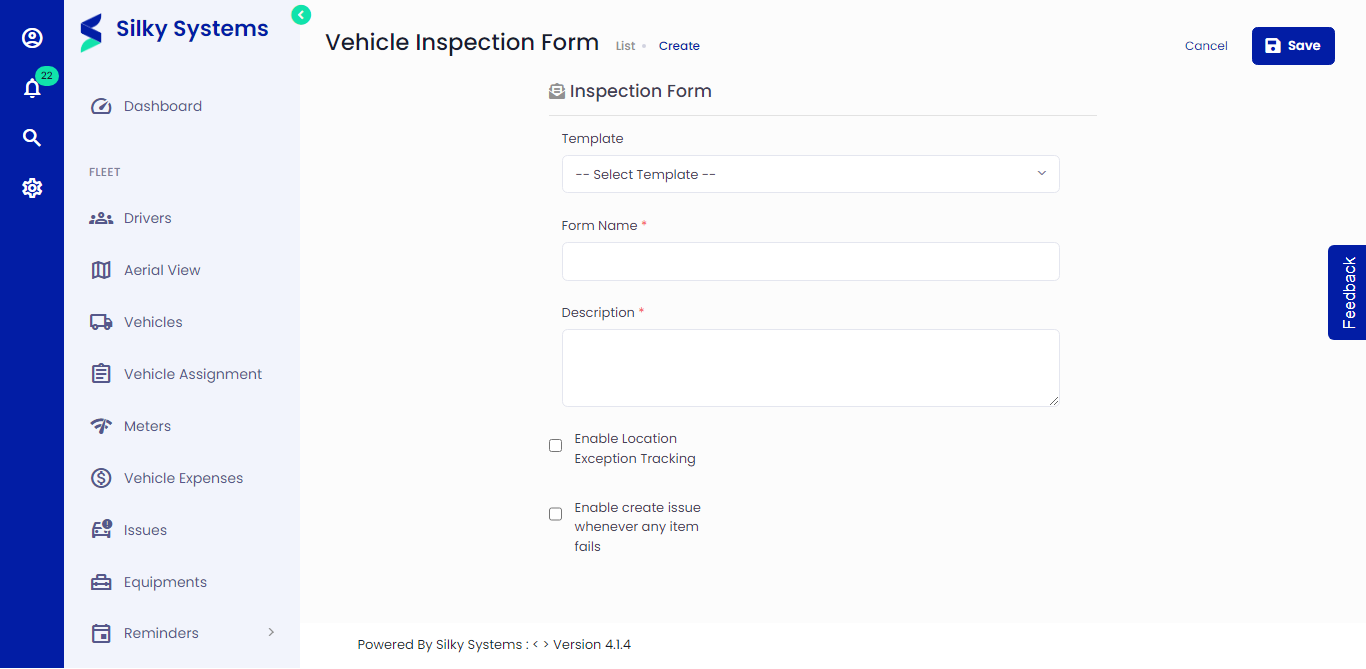 Figure.01 Create Inspection Form
Modify Inspection Forms: Add, Edit, or Delete Inspection Items
Expand an existing Item to Edit (a) or click the edit icon (b). Click the Trash icon to Delete (c). To add new inspection item, click the + Add Inspection Items (d). When complete, click Save (e).
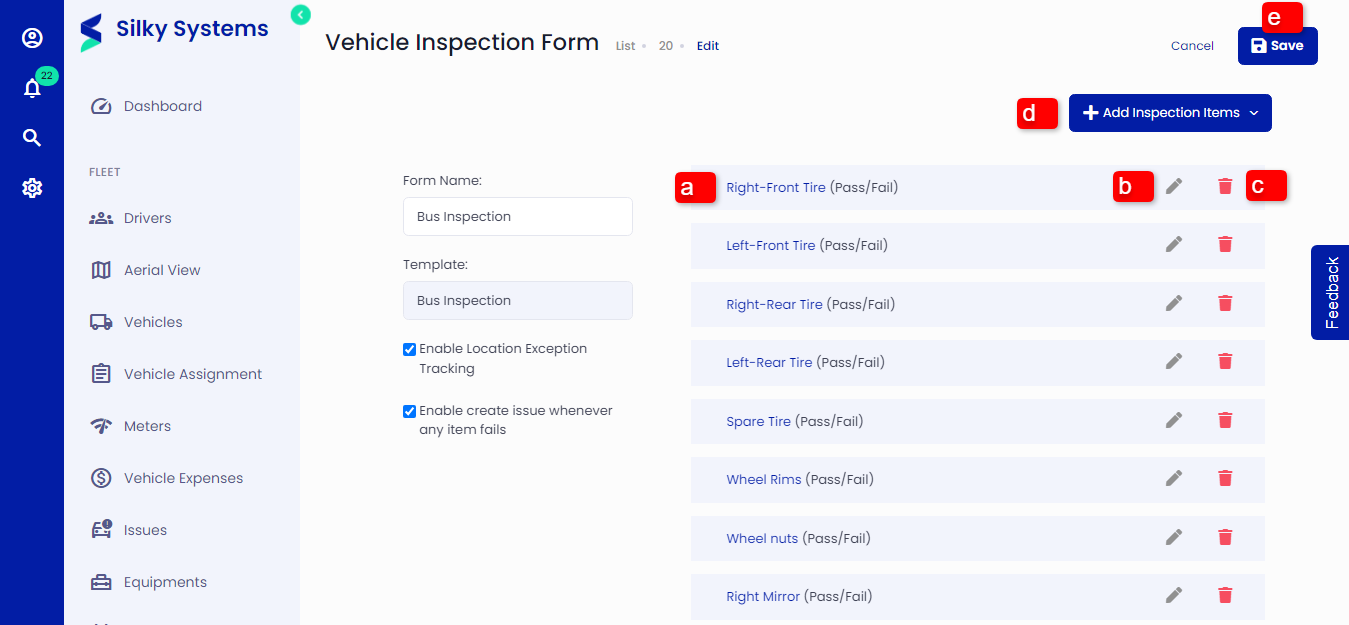 Figure.13 Items List - Edit
Delete an Inspection Form
You can delete the form if you no longer need to use an Inspection Form.
IMPORTANT: Deleting an Inspection Form will permanently remove all items created for this form and every inspection submission.
From the Inspection Form list, Under the Action column, click the Trash icon to Delete.
Next Steps
Now that you have created and edited Inspection Forms, you are ready to create and submit inspections. Learn more about how to create and submit inspections here.