Adding & Viewing Drivers
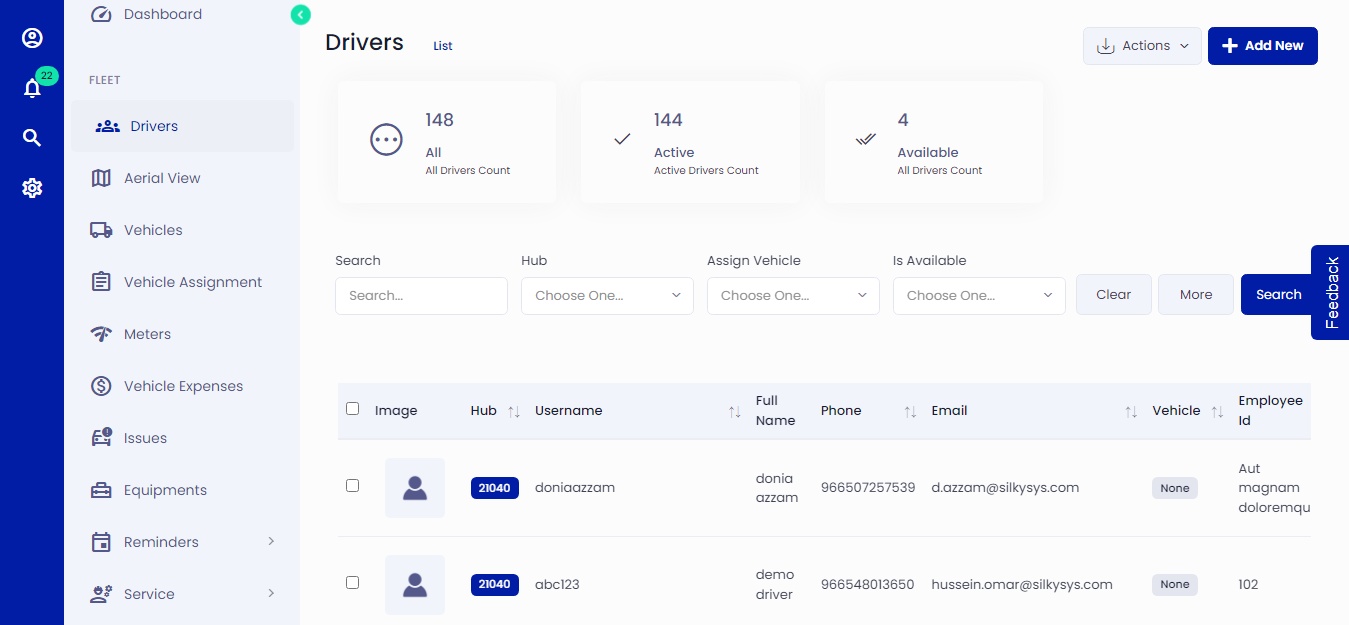 Figure.01 Adding Drivers
To add drivers, follow the below instructions.
Adding Drivers
Click on Drivers -> Add New
Fill in the driver details such as name, password, email, and contact number and give a unique username.
Is active?: This option is used to Activate/Deactivate the driver.
Assign a hub to the driver. Find out more about the Hub and how to set one up here .
Click save when you are done adding the necessary driver details.
You can edit/delete the driver.
View Drivers
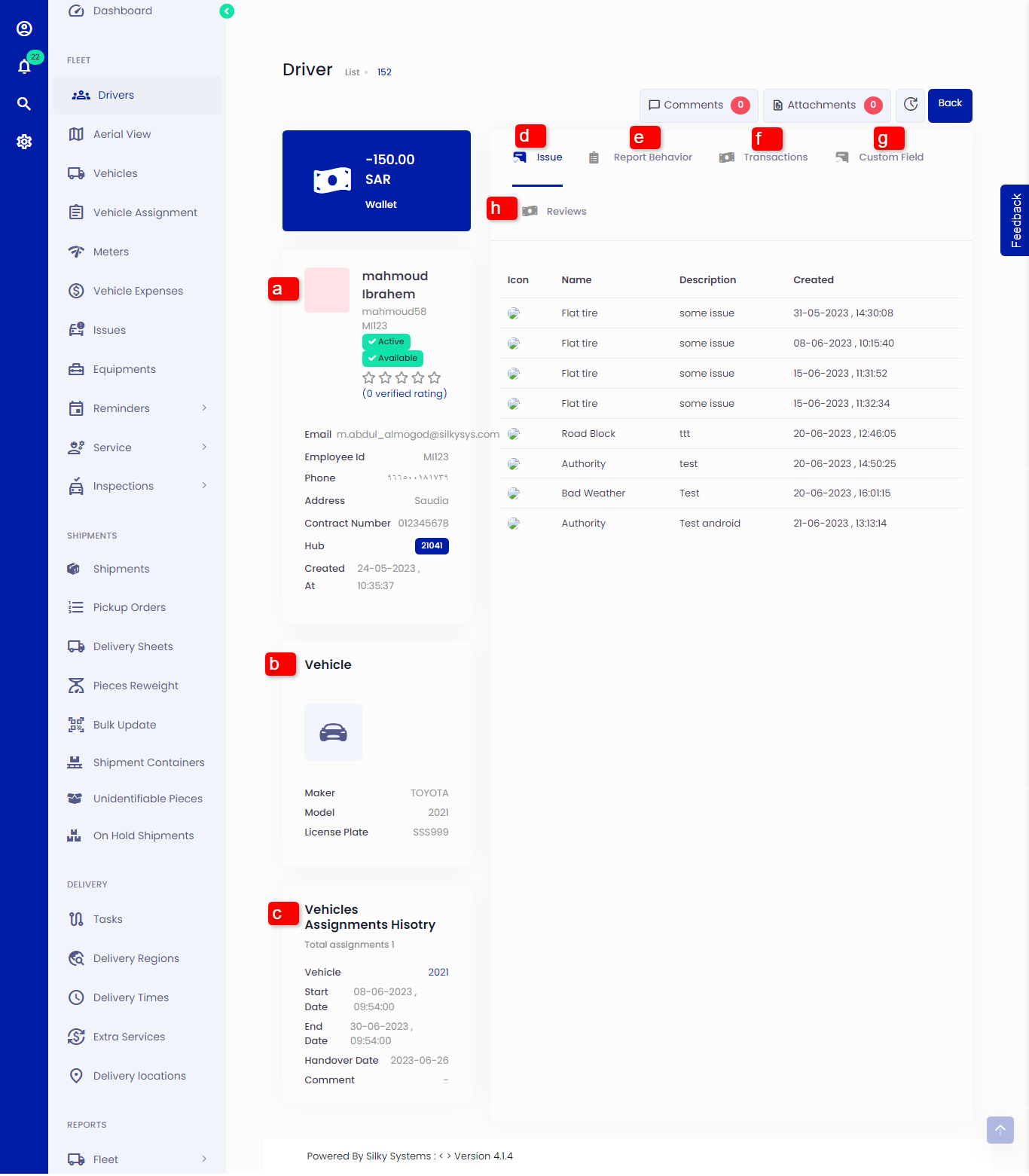 Figure.02 View Drivers
Click on the eye icon in Action column to view driver details
(a) The Profile shows all the details related to the driver such as name, email, contact number etc.
(b) This shows the currently assigned vehicle
(c) The Vehicle Assignment History shows the list of vehicles that were previously assigned and the current assigned vehicle.
(d) Any Issues associated with the driver.
(e) Displays all the Reported Behavior of the Vehicle.
(f) Displays all the Transactions of the vehicle.
(g) Displays any Custom Field.
(h) Displays all the Reviews.