Clients
Introduction
The Client Feature in our Logistics System is designed to help you efficiently manage and store all the information related to your clients. This documentation provides a comprehensive guide to the features and functionalities of the Client Module, including adding, editing, and viewing client details.
1. Accessing the Client Feature
To access the Client Feature in our Logistics System, follow these steps:
- Log in to your account with valid credentials.
- Navigate to the main dashboard or menu.
- Click on "Clients" under the Management module.
 Figure.01 Client List
2. Adding a New Client
Adding a new client to the system is a straightforward process:
- Click on the "Add New" button.
- Fill in the client's information in the provided fields.
- Ensure you input accurate and complete details.
- Click the "Save" button to store the client's information.
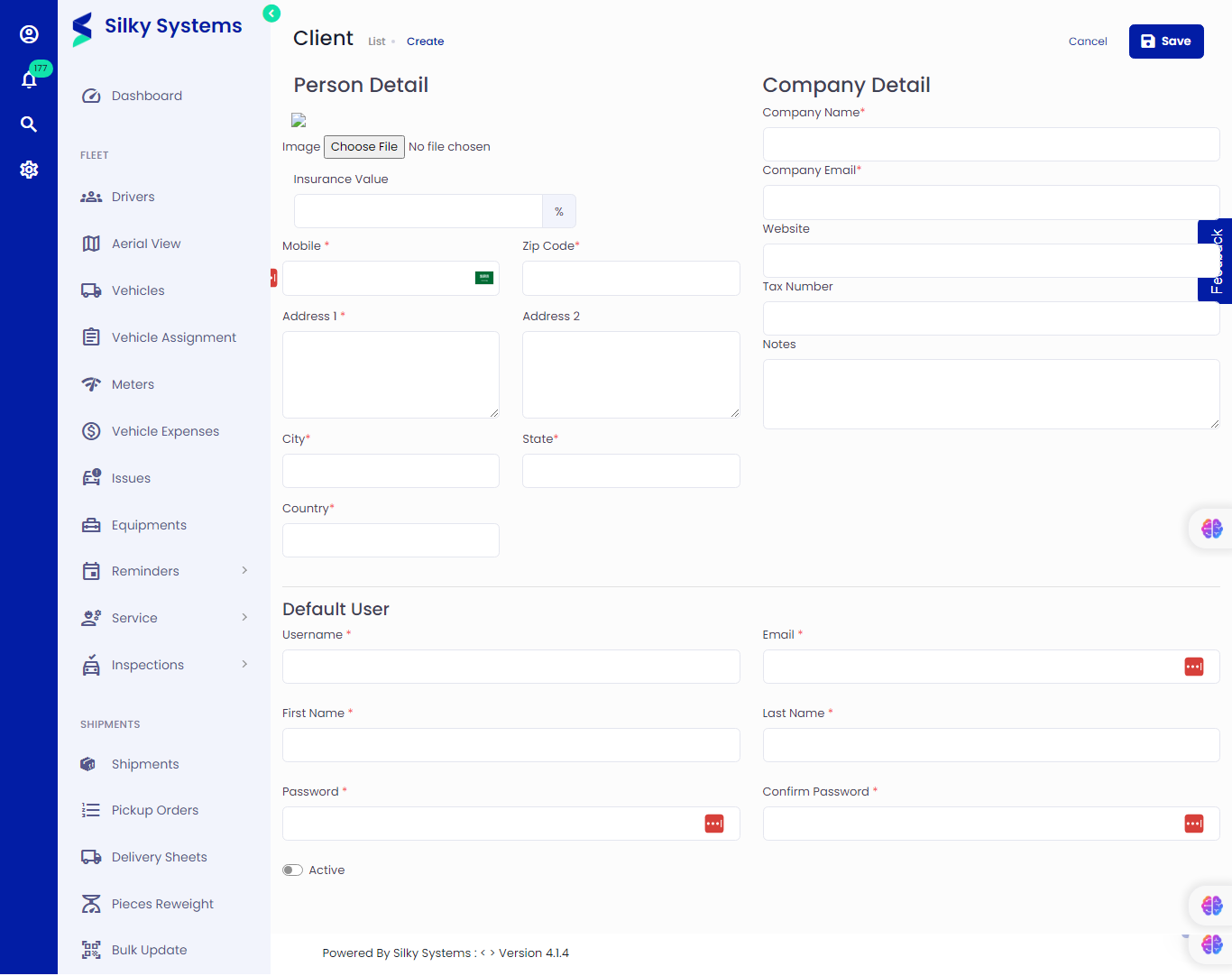 Figure.02 Create a Client
3. Editing Client Information
To update or edit a client's information:
- Locate the client whose details you want to edit.
- Click on the "Edit" icon next to the client's name.
- Modify the required information in the client's profile.
- Save the changes by clicking the "Save" button.
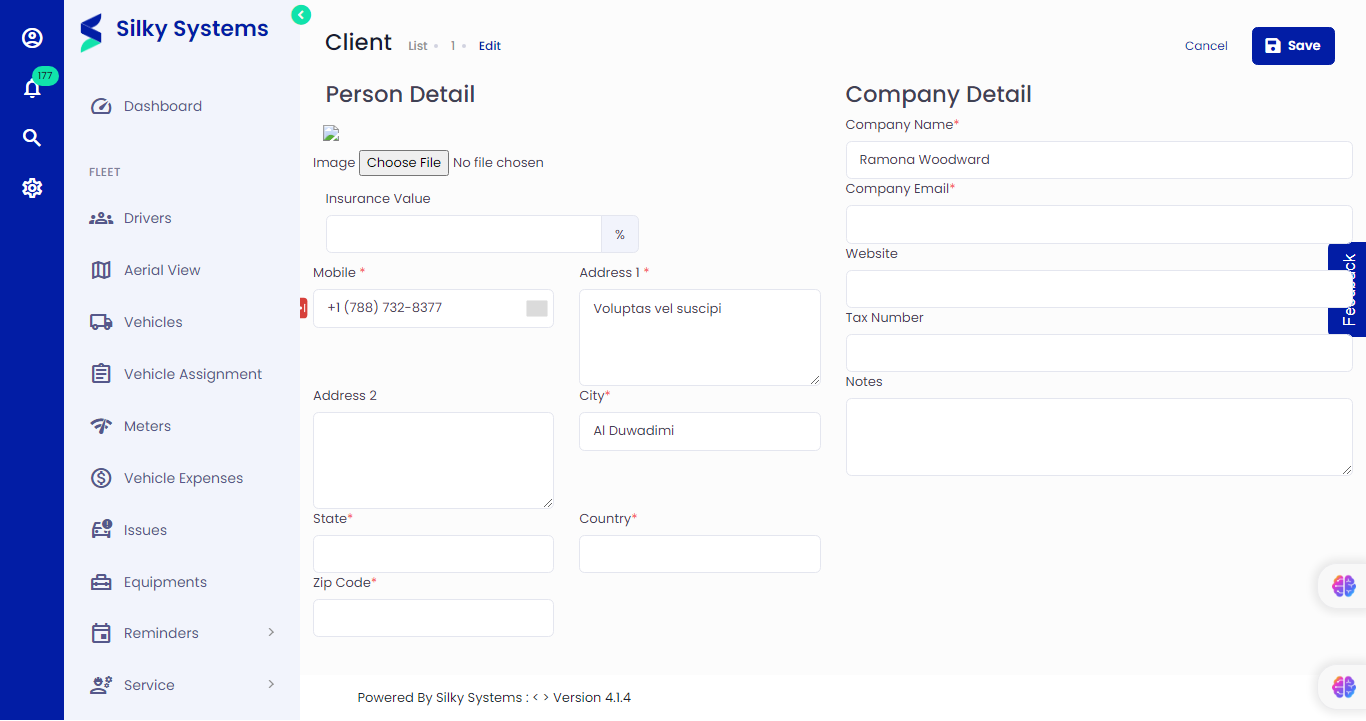 Figure.03 Edit a Client
4. Viewing Client Details
To view a client's details:
- Find the client's name in the list of clients.
- Click on the "View" icon.
- You can now access and review all information related to that client.
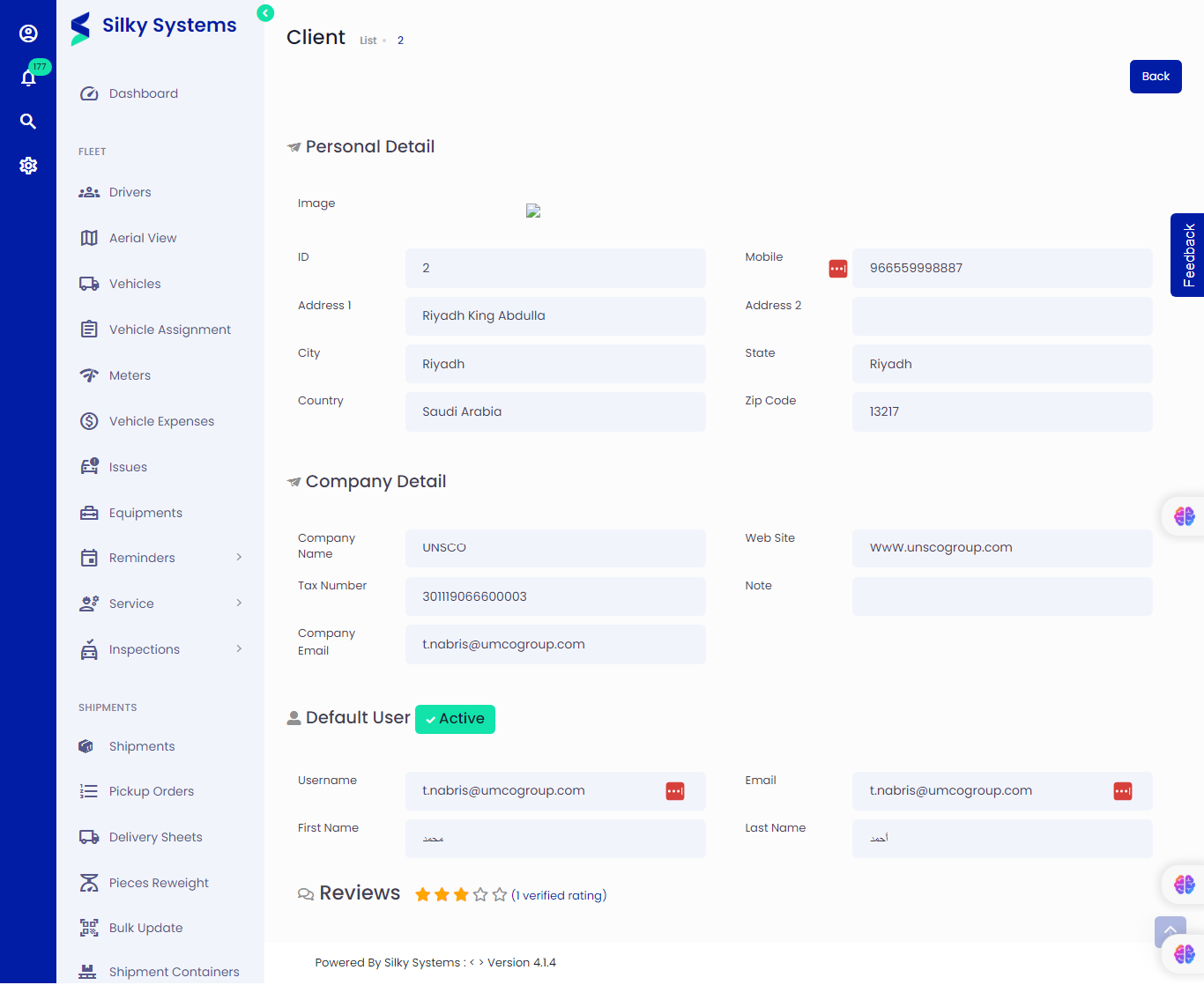 Figure.04 View a Client
5. Searching for Clients
Efficiently find specific clients using the search functionality:
- Use the search bar at the top of the client list.
- Enter keywords, such as the client's name or any relevant information.
- The system will display matching results.