Shipments
Shipments Overview
All shipments created from the admin interface are displayed over here. You can open each shipment to view its details, print labels for each piece, import your shipments or create new shipments.
Shipment List
When you click on the shipments tab from the top menu, you can view all the shipment information, as shown below.
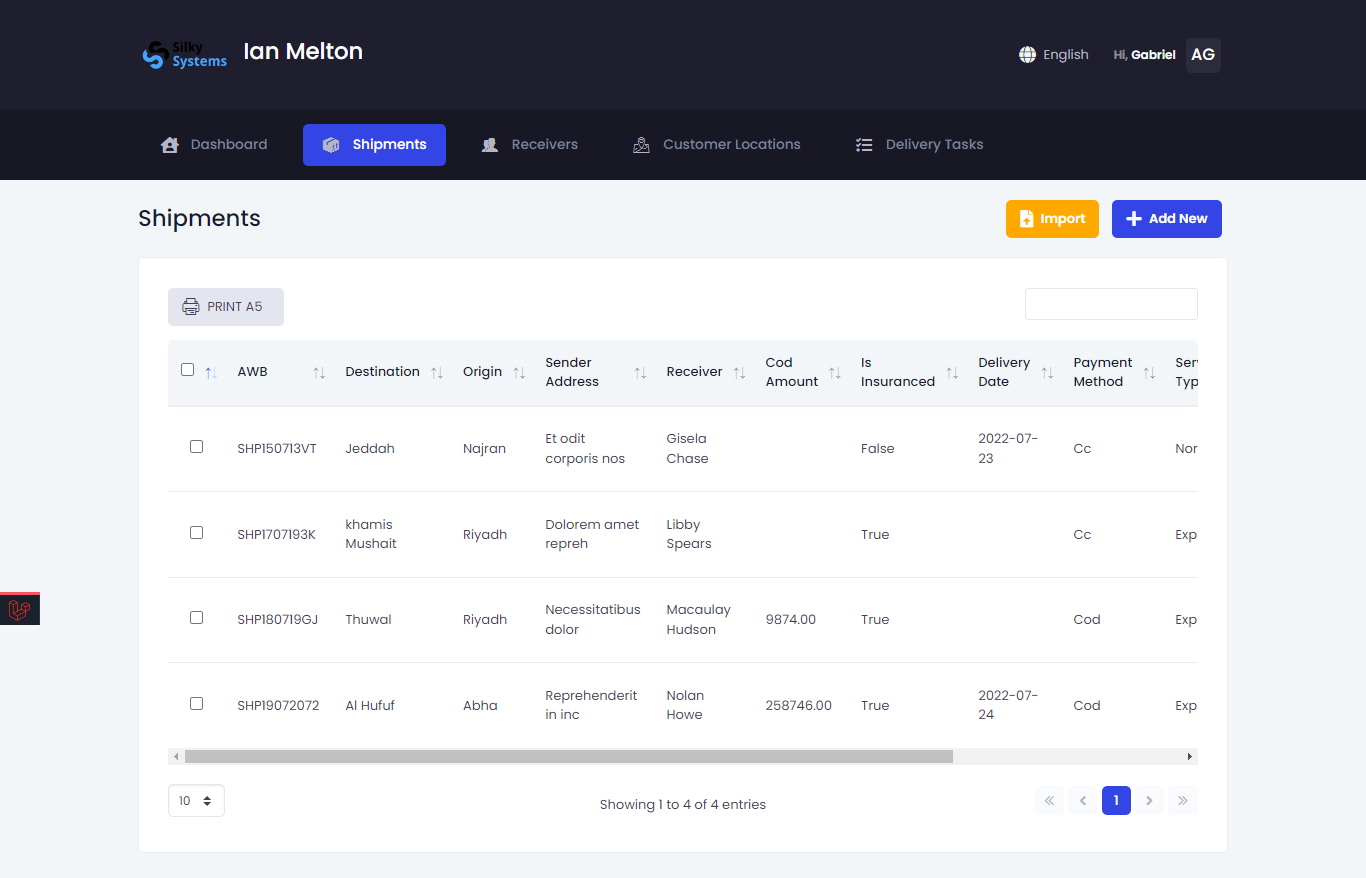 Figure.01 Shipments
View Shipment
To view detailed information regarding any shipment, under the Action column, click on the three vertical dots, then click on Details.
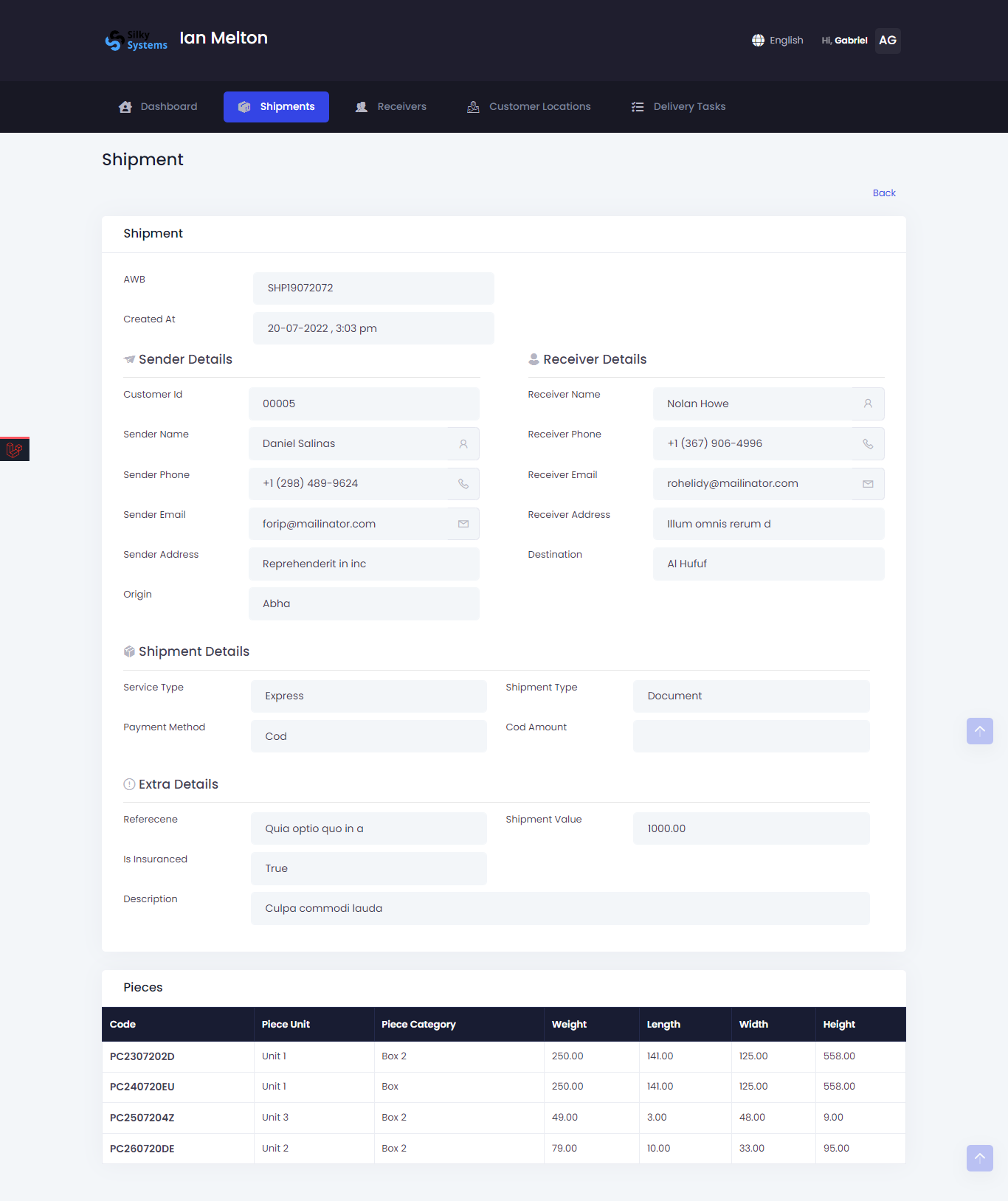 Figure.02 Shipments Details
Print Piece Labels
To print the labels for each piece in the shipment, click on the three vertical dots, then click on the PRINT A5 under the Action column.
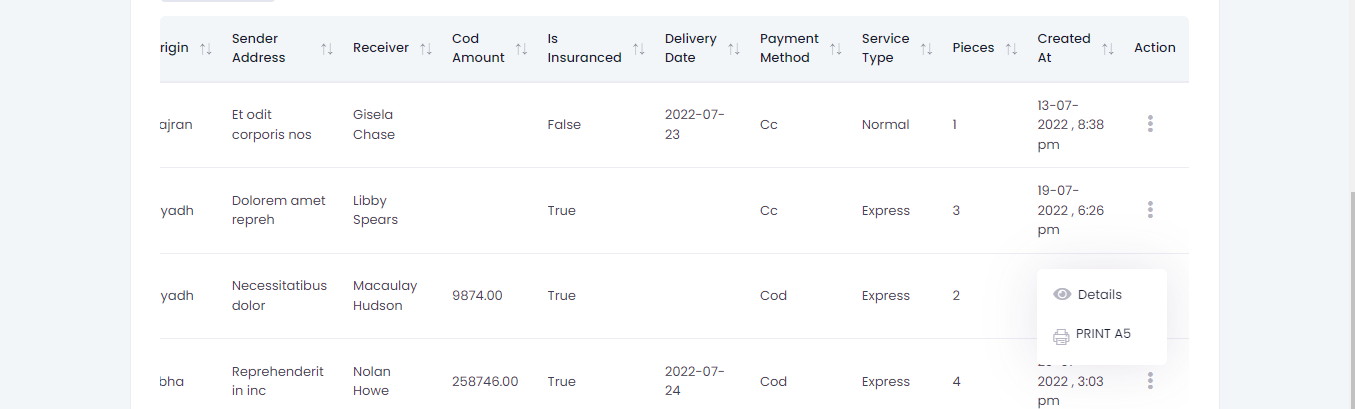 Figure.02 Print Piece Labels
Create Shipment
Click on Add New from the Shipment List to create a new shipment. Fill in all the details regarding the shipment and shipment pieces. The address and receiver can be created from Customer Locations and Receivers respectively.
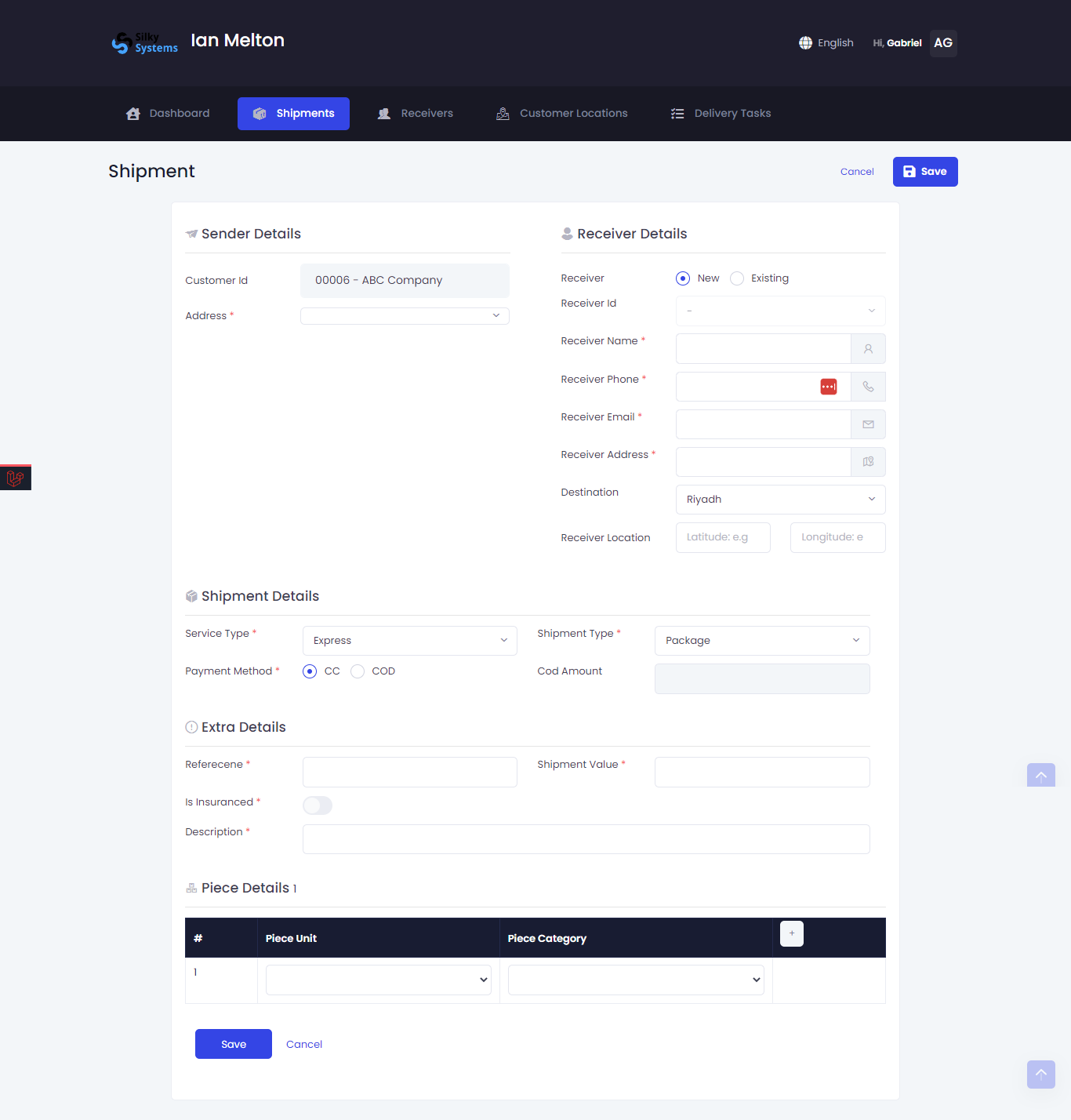 Figure.03 Create Shipment
Import Shipment
You can import your shipment by clicking on the Import button from the Shipment List. A sample excel sheet is provided for reference. The fields marked with /*/ are required.
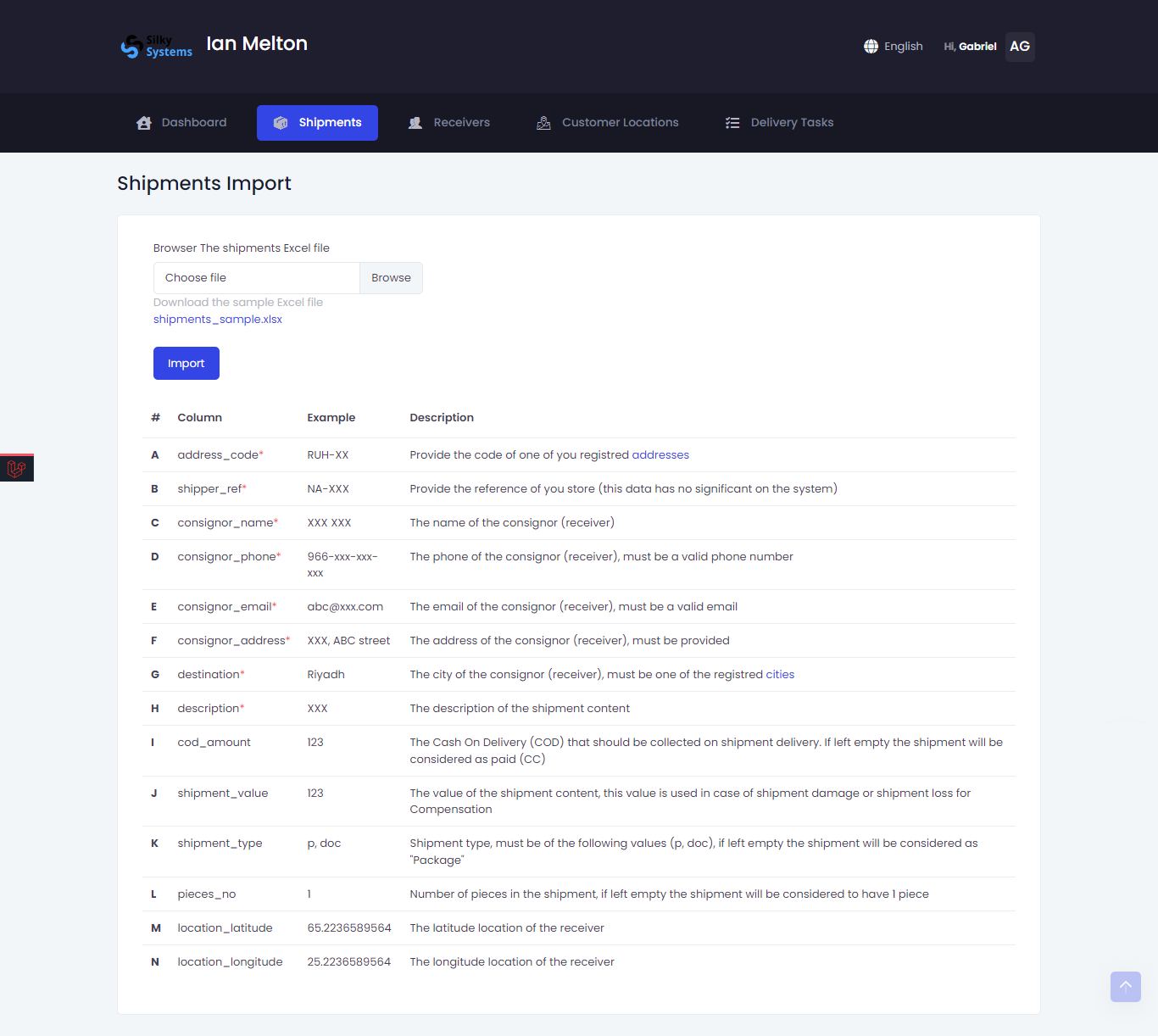 Figure.04 Import Shipment