Customer Locations
Customer Locations Overview
Customer Locations is your location address which you can add dynamically. You can add multiple addresses for different warehouses or properties, as well as you can update or delete existing location addresses.
Customer Location List
When you click on the Customer Locations tab from the top menu, you can view all the Customer Locations, as shown below.
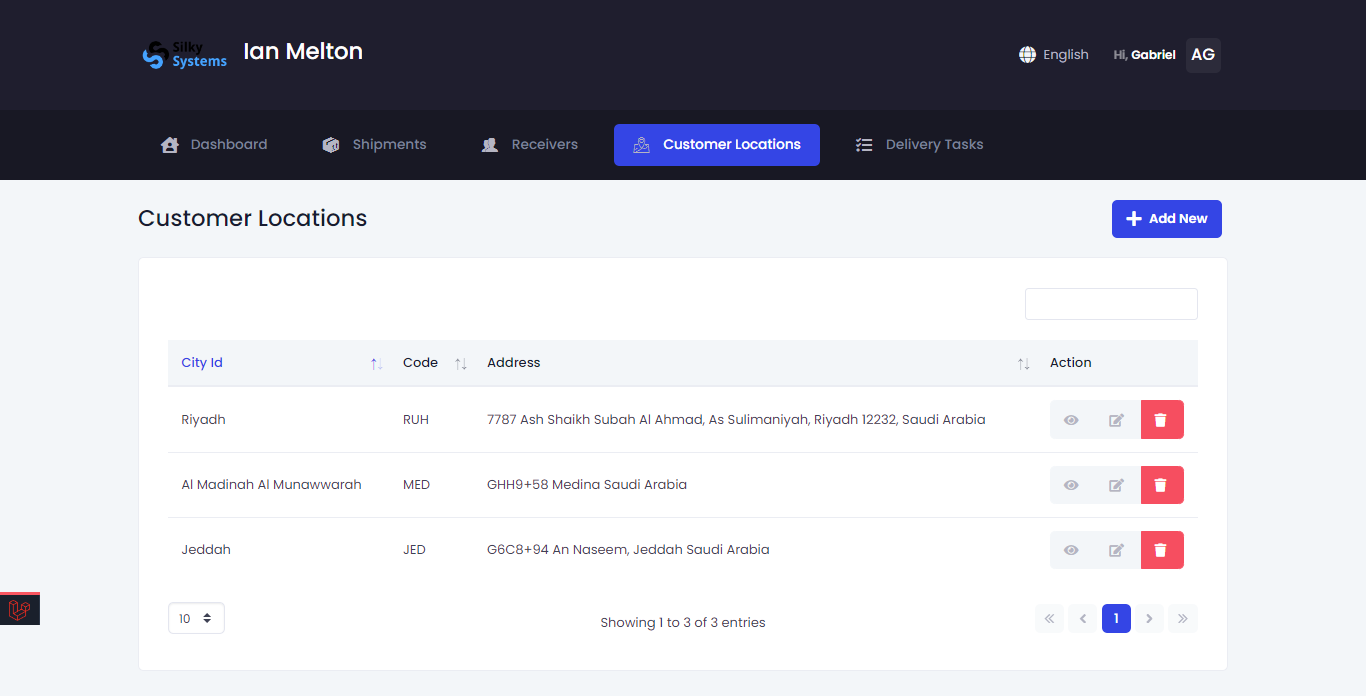 Figure.01 Customer Locations
View Customer Location
To view detailed information regarding any Customer Location, under the Action column, click on the three vertical dots, then click on Details.
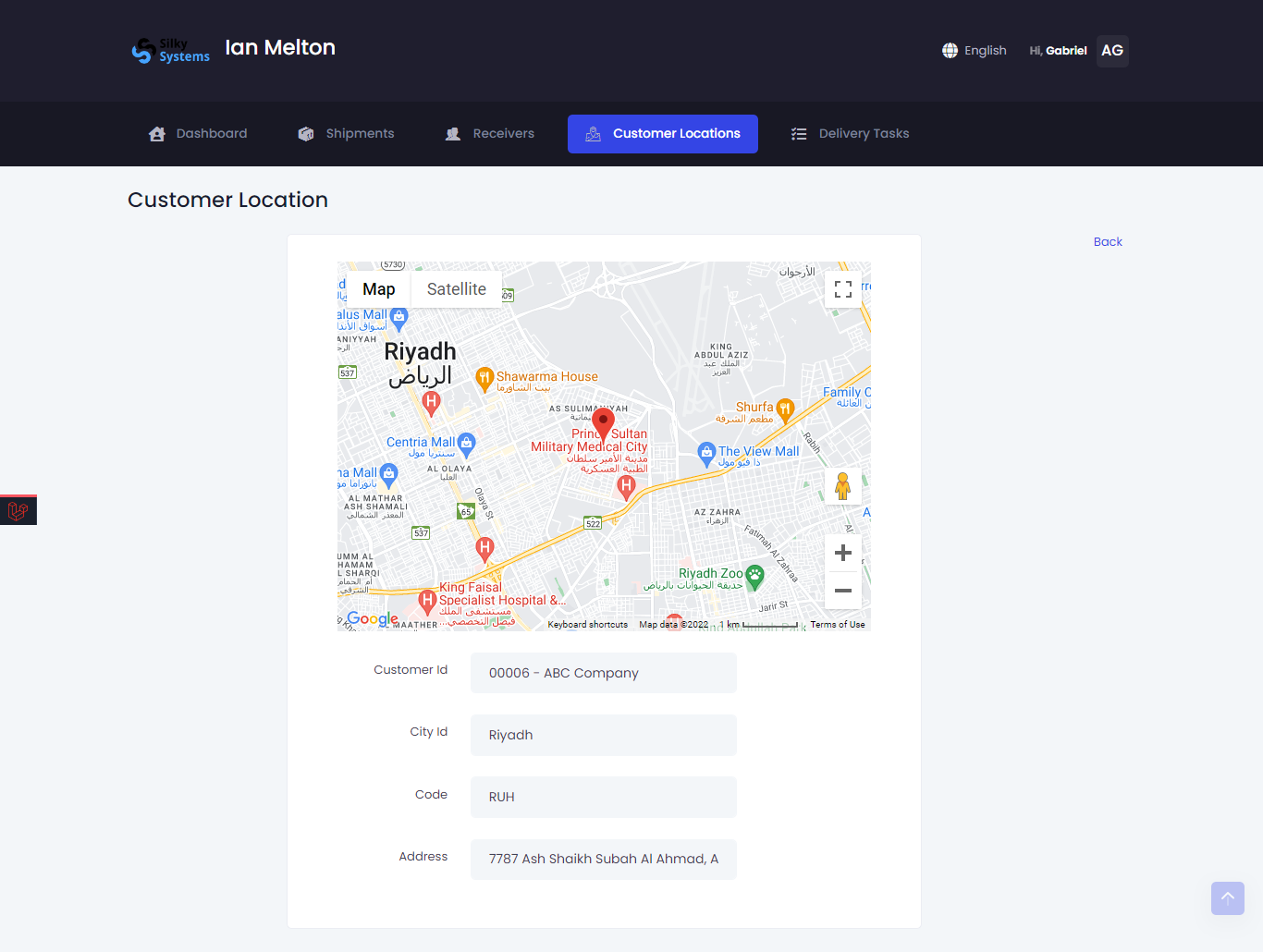 Figure.02 Customer Locations Details
Create Customer Location
To create a new Customer Location, click on Add New from the Customer Location List. Put the marker on the map at your location, and the address will be dynamically retrieved in the Address field. Specify the city and give it a unique code. Click save when you are done.
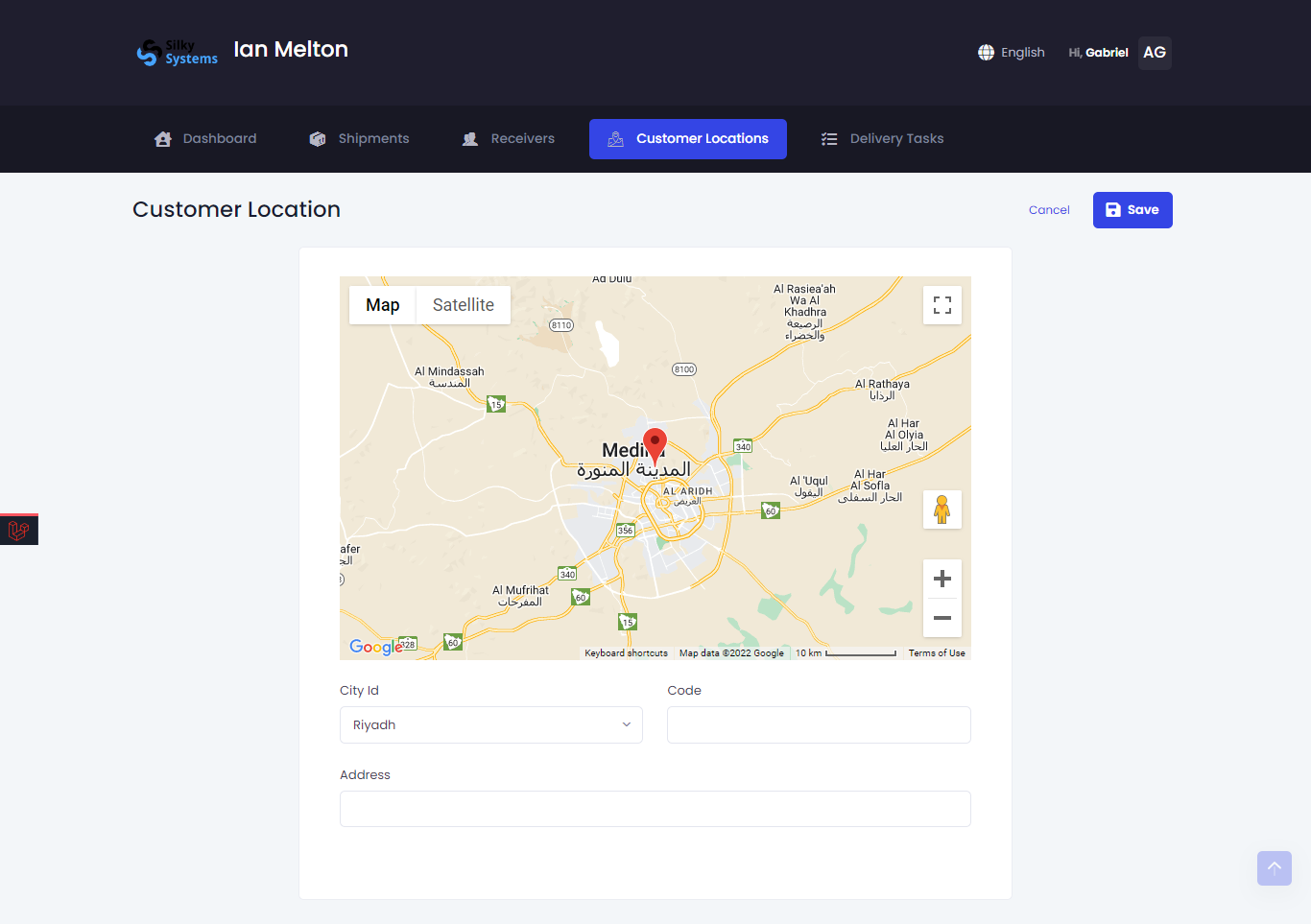 Figure.03 Create Customer Location
Edit Customer Location
You can Edit your Customer Location by clicking on the edit icon from the [Customer Location List](#Customer Location-list).
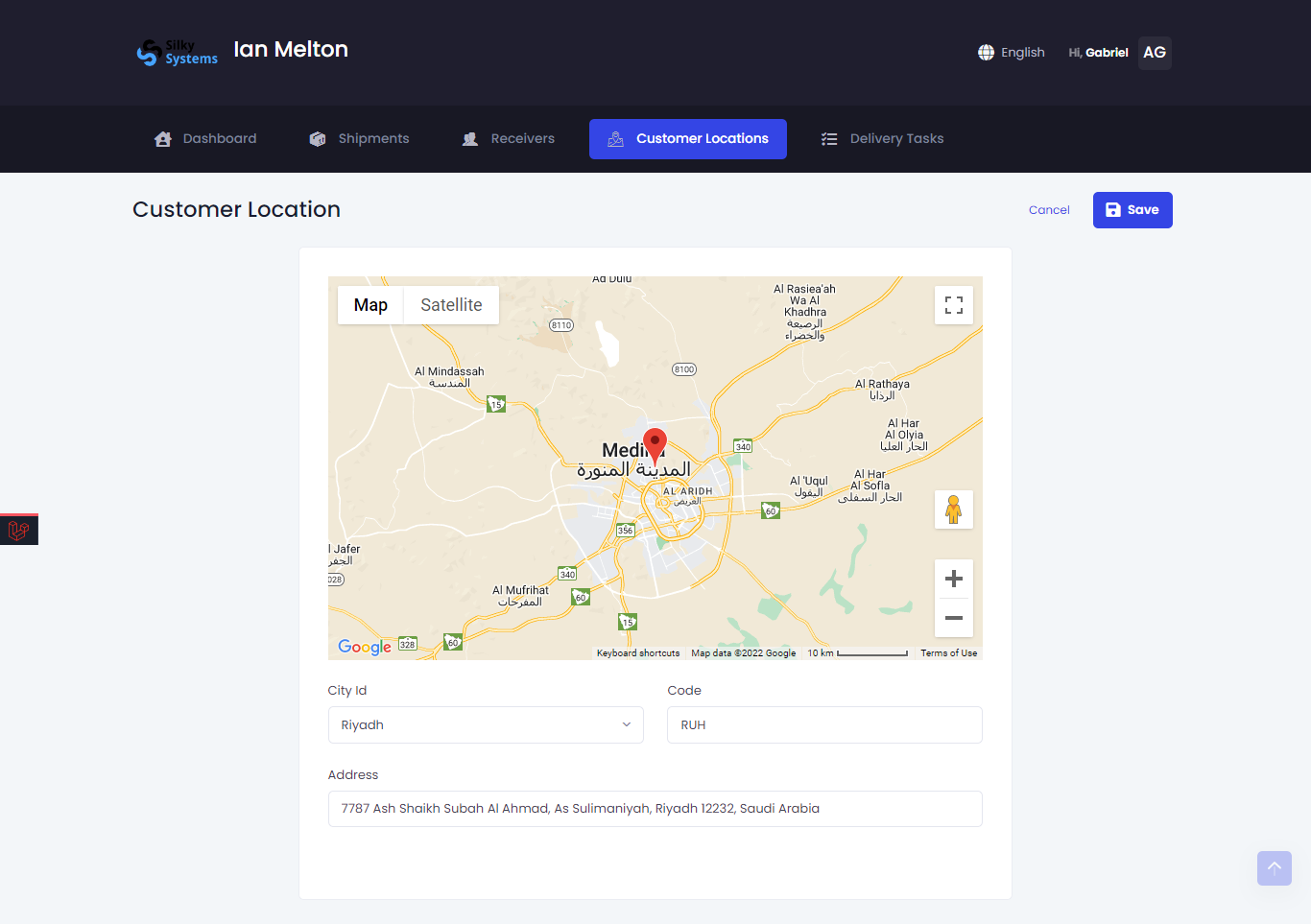 Figure.04 Edit Customer Location